A Premium update does not show when your license key or order number is missing, expired or not valid for the site. It also does not show when WordPress has not checked for updates yet. Polestar Premium is a plugin and uses a license key. Ultra Premium and Puro Premium are themes and use an order number.
Check for Updates Again
WordPress looks for updates every 12 hours. Go to DashboardUpdates and click Check again. If the connection to purothemes.com fails, the Polestar Premium updater waits 1 hour before it tries again.
Polestar Premium
Activate the License Key
- Go to PluginsPolestar Premium.
- Enter your key in License Key and click Save Changes.
- Click Activate License. The page shows Active next to the button.
To find the key, see Find Your Order Number or License Key.
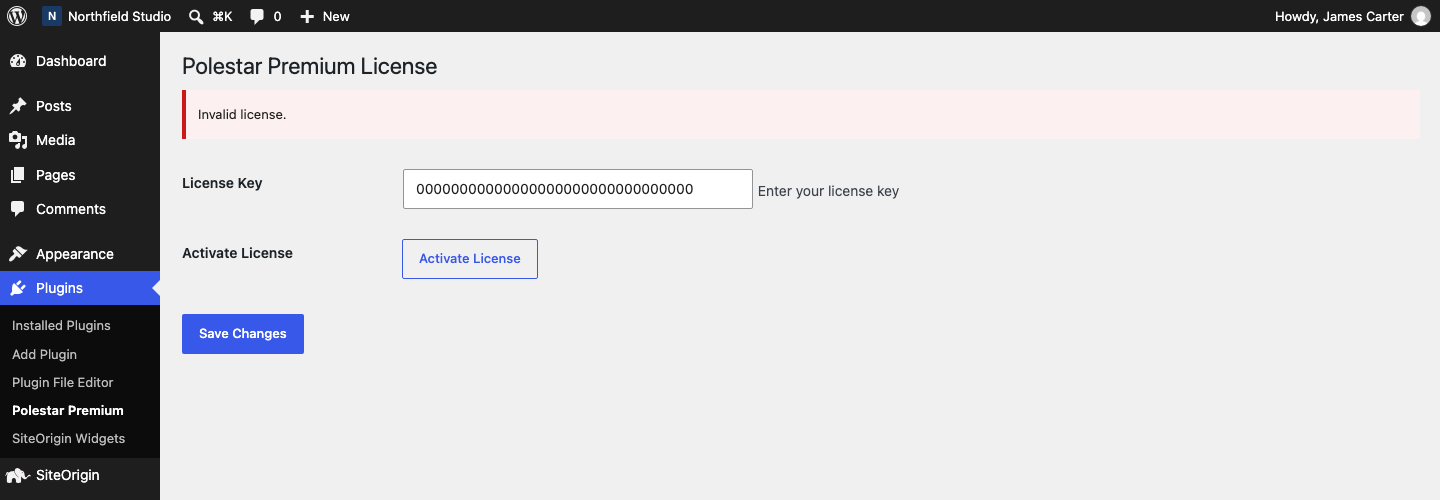
Read the Message in Red
When activation fails, a red message shows at the top of the page.
- Your license key expired on a date. Log in to your dashboard, click Licenses and click Renew license. Updates start again after the renewal.
- Your license key has been disabled. Contact us.
- Invalid license. The key does not exist. Copy it again from the Licenses tab and check for extra spaces.
- Your license is not active for this URL. The key is not activated for this site address. See Move a Premium License to a New Site.
- This appears to be an invalid license key for Polestar Premium. The key belongs to another product.
- Your license key has reached its activation limit. A single site license covers one site. Free a slot with Deactivate Site, or upgrade the license. See Managing Your Premium License.
Fix Download Failed: Unauthorized
This error has two causes. The license has expired, or the key is not active for the site address. Fix the license, then run the update again.
Install the Update From a ZIP File
- Log in to your dashboard and download the plugin from the Downloads tab.
- Go to PluginsAdd Plugin and click Upload Plugin.
- Choose the ZIP file and click Install Now.
- Click Replace current with uploaded.
Ultra Premium and Puro Premium
Save the Order Number
- Go to AppearanceCustomizeTheme SettingsUltra Premium. In the Puro theme, the section is Puro Premium.
- Enter your number in Order Number and click Publish.
- Go to DashboardUpdates and click Check again.
Without a saved order number, the theme does not ask for updates. To find the number, see Find Your Order Number or License Key.
Use an Order That Includes the Theme
Updates come from updates.purothemes.com. The order must be open and must include the theme. An Ultra Premium order number does not give updates for the Puro theme, and the reverse is also true.
Check the Theme Folder Name
The theme asks for updates under the name of its folder. Go to AppearanceThemes and check that the theme folder in wp-content/themes is named ultra or puro. A folder with another name, such as ultra-1, gets no updates.
Allow the Connection to Our Server
The theme reads update data from http://updates.purothemes.com with a 10 second timeout. A host firewall or a security plugin can block the request. So can this line in wp-config.php:
define( 'WP_HTTP_BLOCK_EXTERNAL', true );
If your site has that line, add a second line to allow our server. Otherwise, ask your host to allow the connection.
define( 'WP_ACCESSIBLE_HOSTS', 'updates.purothemes.com' );
Install the Update From a ZIP File
If no update shows, download the current ZIP file from the link in your order email. Then install it as in Update Theme Using ZIP File.