To show your archives as a drop-down list, turn on Display as dropdown in the Archives widget or block. A drop-down keeps a long list of months and years small in a sidebar.
The menus you see depend on your theme. A classic theme shows Customize in Appearance, plus Menus and Widgets when it supports them. A block theme shows Editor in place of Customize, unless the theme or a plugin adds Customizer settings. It shows Menus or Widgets only when it supports them. Polestar, Ultra and the Puro theme are classic themes.
By default, Polestar, Ultra and the Puro theme use the classic Widgets screen, where you drag widgets into widget areas. Other themes can use the block-based Widgets screen. Both are covered below.
Classic Admin Screens
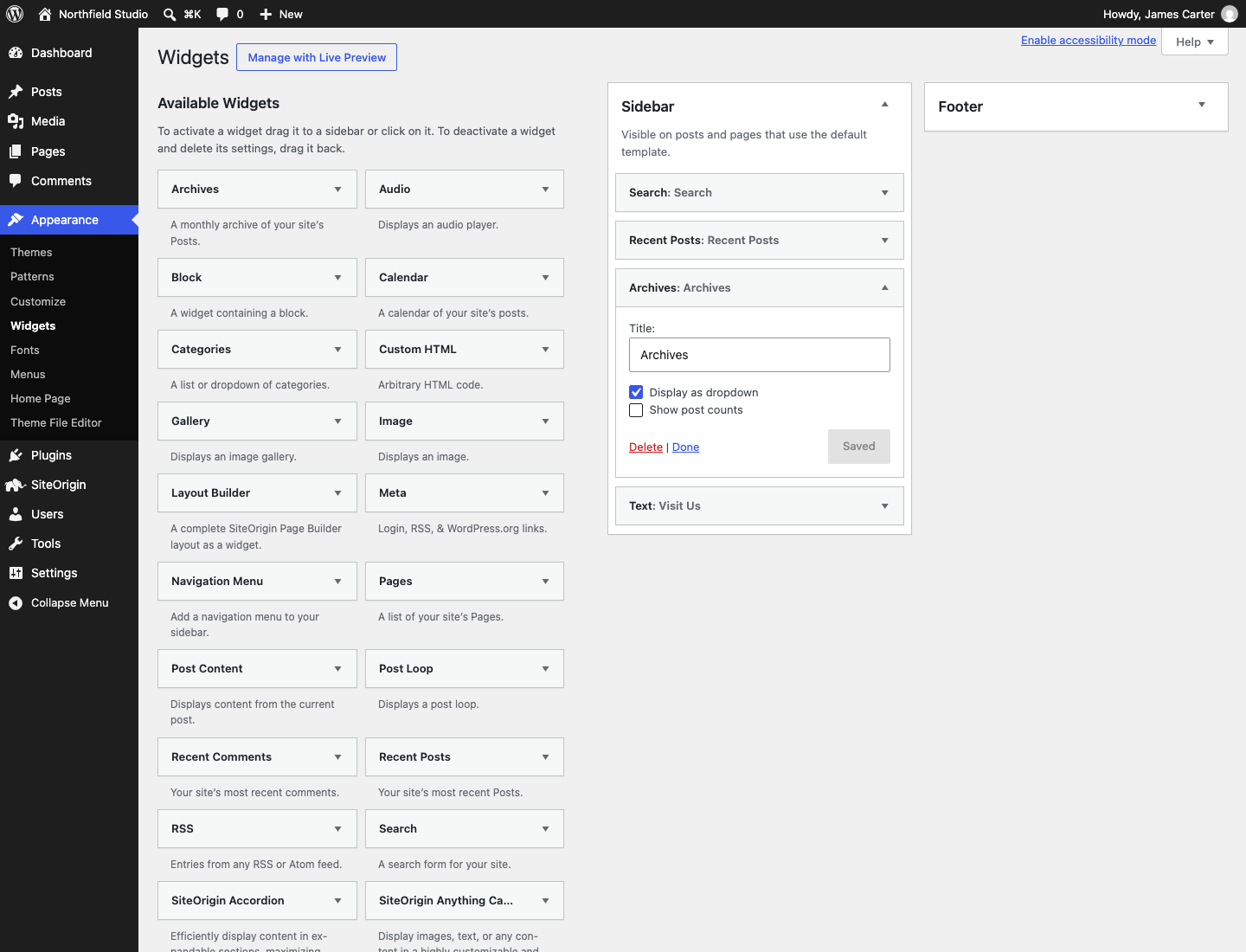
Classic Widgets Screen
- Go to AppearanceWidgets.
- Drag the Archives widget from Available Widgets into your sidebar.
- Enter a Title if you want one. Check Display as dropdown, and check Show post counts if you want the counts.
- Click Save.
Block-Based Widgets Screen
- Go to AppearanceWidgets and open your sidebar.
- Click the Block Inserter button, search for Archives and add the block.
- In the block settings, turn on Display as dropdown.
- Turn on Show label or Show post counts if you want them. Show label only appears when the drop-down is on.
- Set Group by to Year, Month, Week or Day. The default is Month.
- Click Update.
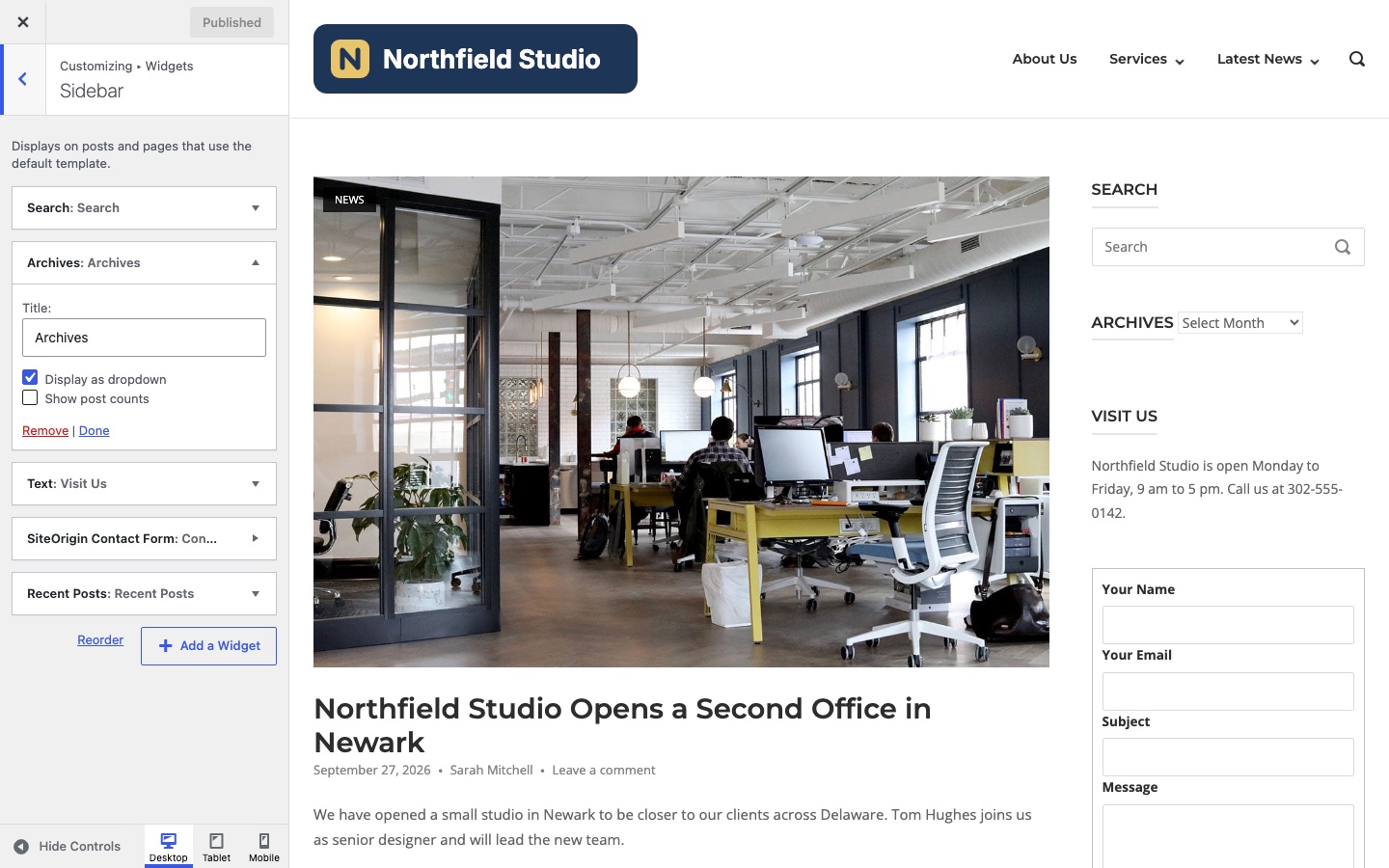
Customizer
- Go to AppearanceCustomizeWidgets and open your sidebar.
- Click Add a Widget and choose Archives. With the block-based screen, click Add a block instead.
- Turn on Display as dropdown.
- Click Publish.
Block Themes
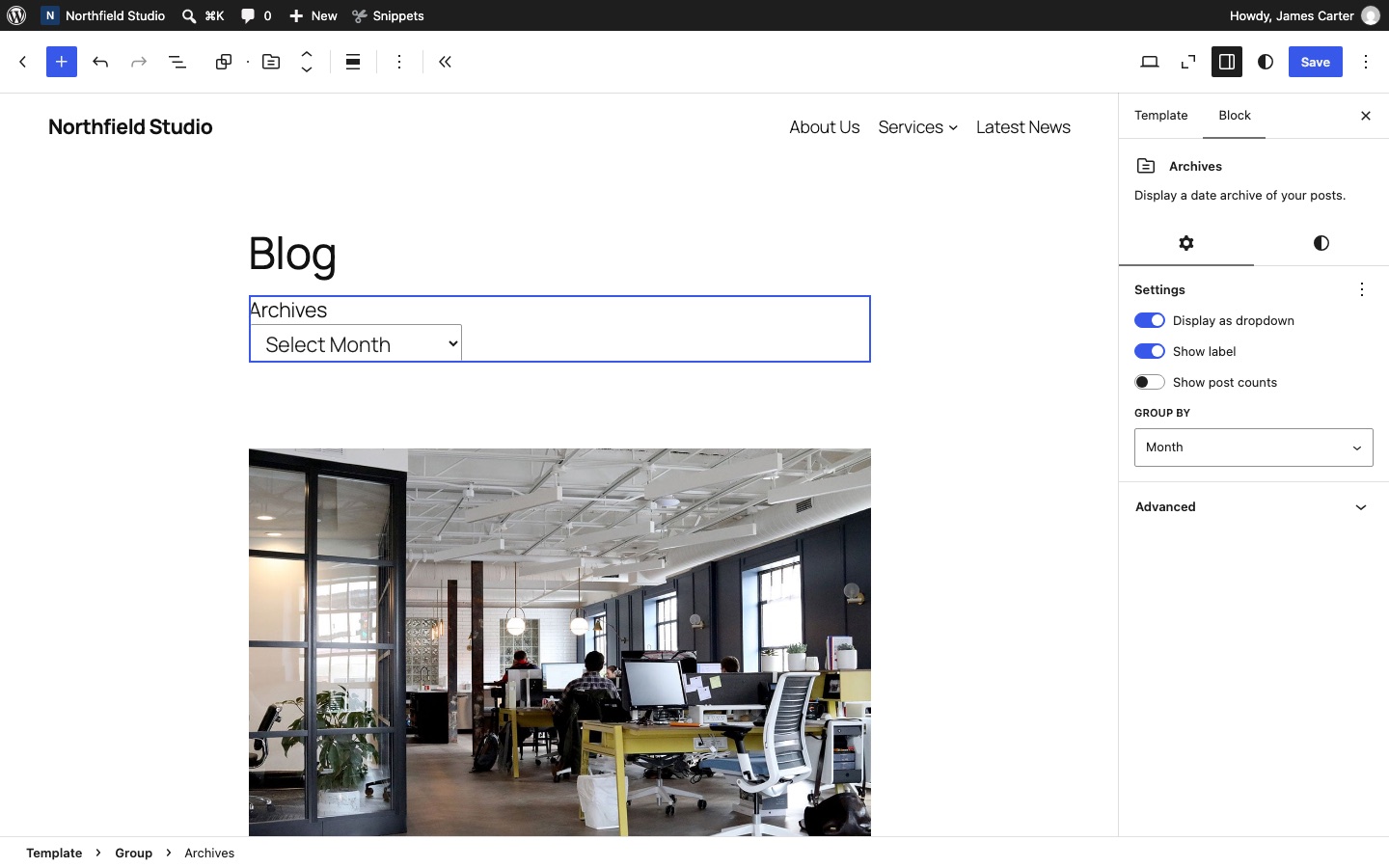
- Go to AppearanceEditorTemplates and open a template such as Blog Home.
- Click the block inserter and add Archives where you want the list.
- Turn on Display as dropdown in the block settings, then click Save.
Collapse Archives by Year
To collapse each year into a group of months, use the JS Archive List plugin (formerly jQuery Archive List Widget). It adds a JS Archive List block. Add it as you added the Archives block and set its options in the block settings.