To set a featured image, open the post or page and use the Featured image panel. The theme shows it in blog lists, on the post and on pages, depending on the settings below.
Classic Admin Screens
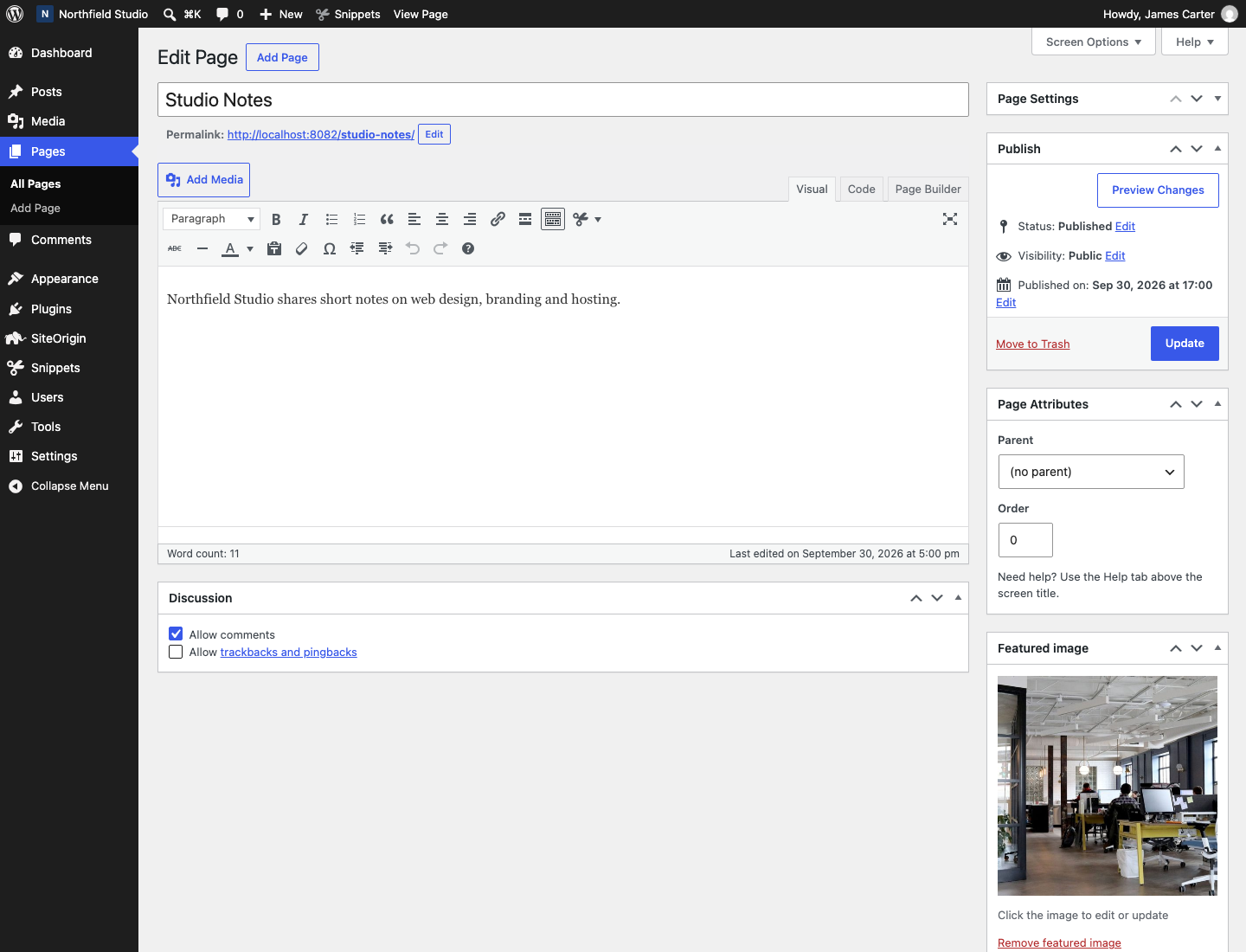
In the Classic Editor:
- Find the Featured image box in the right column.
- Click Set featured image and choose or upload an image.
- Click Update.
Customizer
Puro themes have settings that show or hide the image. Go to AppearanceCustomizeTheme SettingsBlog. Both settings are on by default.
- Archive Featured Image shows the image on blog and archive pages.
- Post Featured Image shows the image on single posts.
For pages, the Puro theme has Page Featured Image, and Ultra and Polestar have Featured Image, in the Pages section. All are on by default. WordPress core has no featured image setting in the Customizer.
Block Themes and the Block Editor
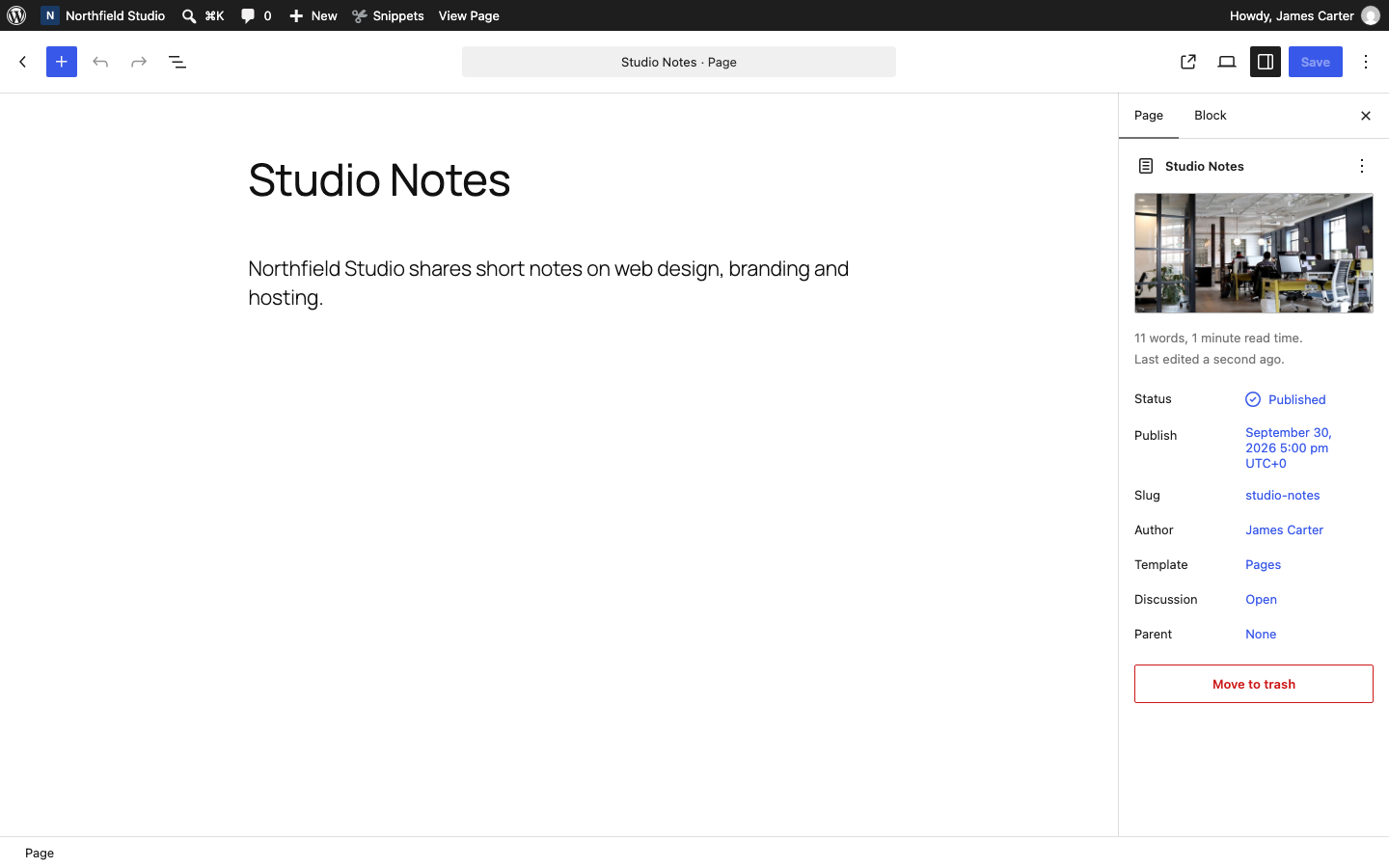
Set the Image on a Post or Page
- Open the post or page and open the settings sidebar.
- On the Post tab (Page for pages), open Featured image.
- Click Set featured image.
- Choose an image in the Media Library or upload one, then click Set featured image.
- Click Update.
Show the Image in a Template
- Go to AppearanceEditorTemplates and open Single Posts.
- Click the block inserter and add the Featured Image block. Delete the block to hide the image.
- Click Save.
Related
Was this helpful?