Create and edit menus at AppearanceMenus on classic themes, in the Customizer, or in the Site Editor on block themes.
The menus you see depend on your theme. A classic theme shows Customize in Appearance, plus Menus and Widgets when it supports them. A block theme shows Editor in place of Customize, unless the theme or a plugin adds Customizer settings. It shows Menus or Widgets only when it supports them. Polestar, Ultra and the Puro theme are classic themes.
Classic Admin Screens
- Go to AppearanceMenus.
- Click create a new menu. If you have no menu yet, the name field is already open.
- Enter a name in Menu Name and click Create Menu.
- In the left column, select Pages, Posts, Custom Links or Categories and click Add to Menu.
- Drag items to set their order. Drag an item to the right, under its parent, to make a drop-down.
- Under Menu Settings, check a box under Menu location.
- Click Save Menu.
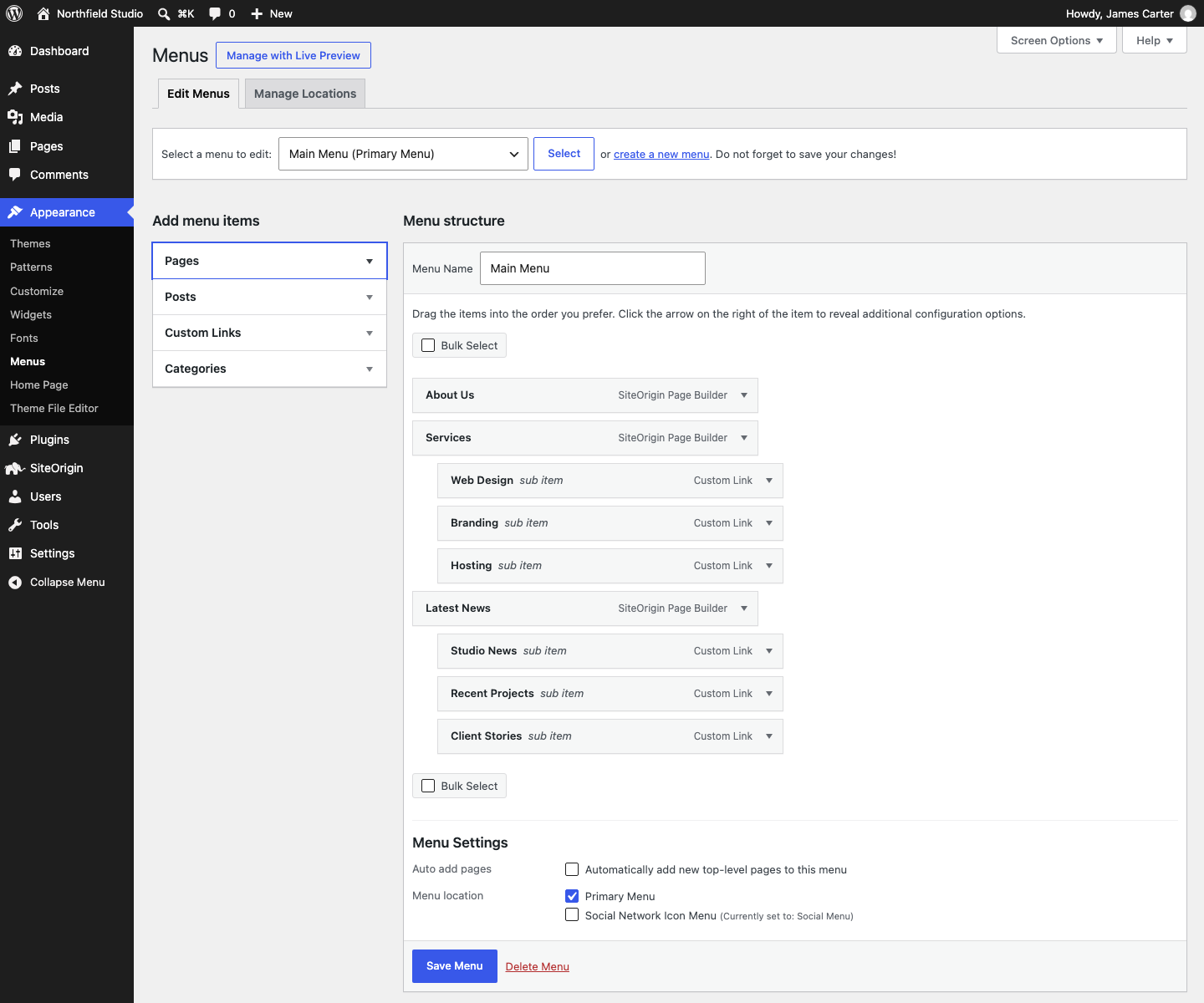
You can also assign menus on the Manage Locations tab at the top of the Menus screen. Under Auto add pages, check Automatically add new top-level pages to this menu to add each new top-level page to the menu.
Customizer
- Go to AppearanceCustomizeMenus.
- Click Create New Menu, enter a Menu Name and click Create Menu.
- Click Add Items and choose pages, links or categories.
- Click Reorder to drag items. Drag an item to the right, under its parent, to make a drop-down.
- Under Menu Locations, check a location for the menu.
- Click Publish.
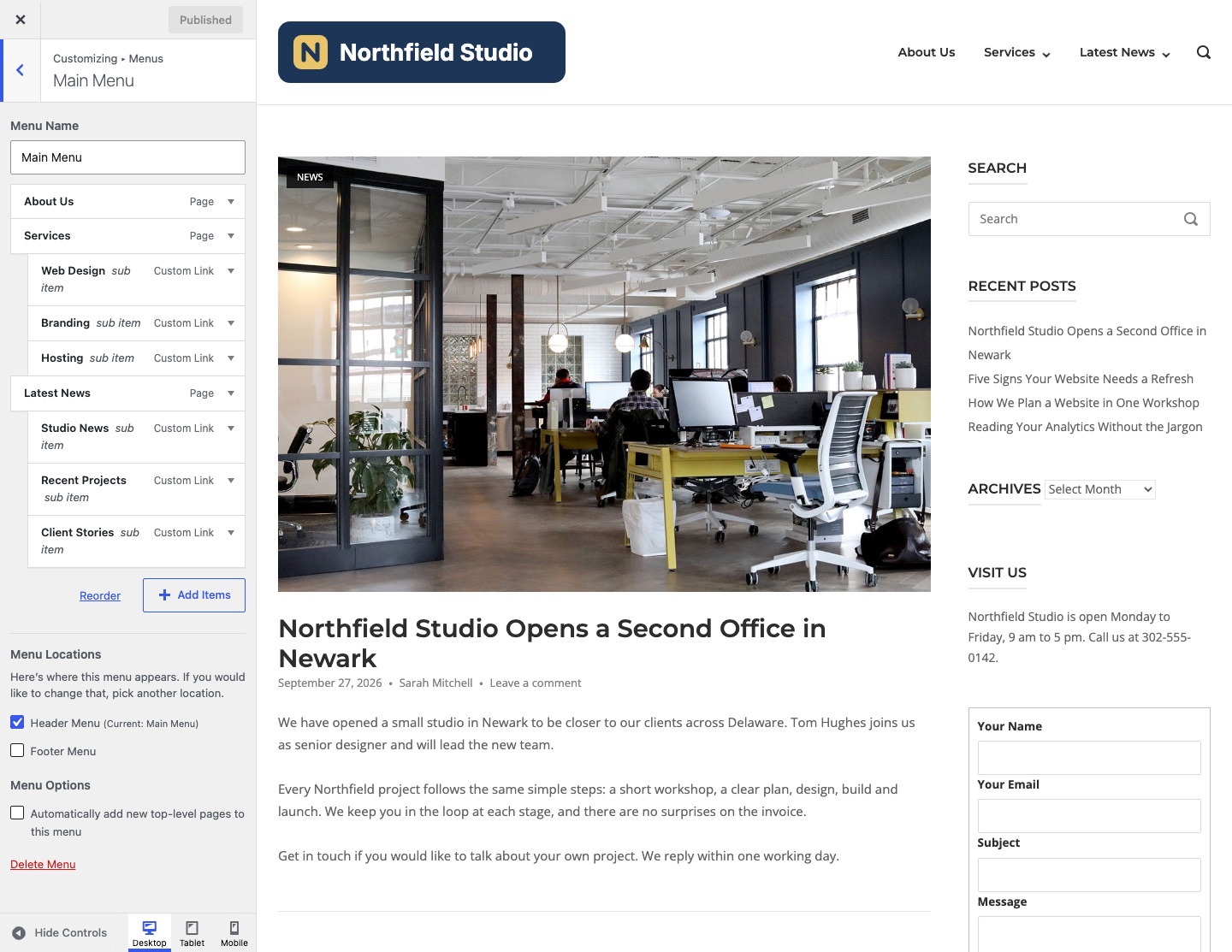
To remove a menu, open it and click Delete Menu.
Block Themes
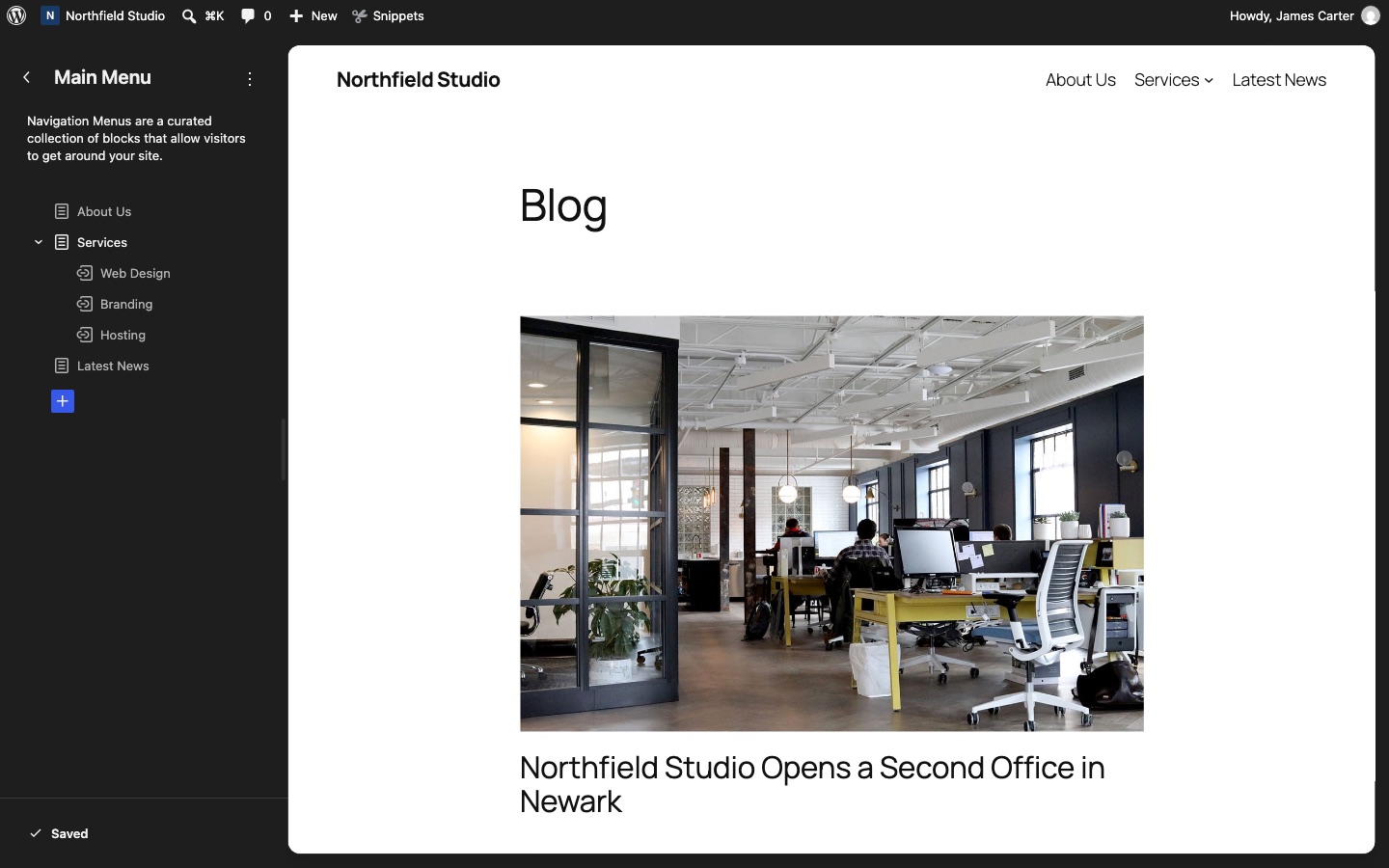
In a block theme, a menu is a Navigation block. The block uses a saved menu, and you can reuse that menu in other templates.
- Go to AppearanceEditor and click Navigation. Select a menu to edit it.
- Or open a template, such as the header, and select the Navigation block.
- In the block settings, open the Menu list and pick a menu, or click Create new Menu.
- Click the add block button in the menu and choose an item, such as Custom Link or Page List.
- To make a drop-down, select an item and click Add submenu in the block toolbar. Add the child items inside it.
- Click Save.
Menu Locations by Classic Theme
- Polestar: Header Menu and Footer Menu.
- Ultra: Primary Menu, Top Bar Menu, Top Bar Social Menu and Bottom Bar Social Menu.
- The Puro theme: Primary Menu and Social Network Icon Menu.
See Appearance Menus Screen for the full WordPress guide.
Related
- Open a Menu Item in a New Tab
- Remove the Link From Parent Menu Item
- Puro Themes Social Icons Menu
- Adding Menu Icons
Was this helpful?