To turn off comments on one post or page, set its comment status to closed in the editor. To turn them off for every new post, clear the option at SettingsDiscussion.
Classic Admin Screens
One Post or Page in the Classic Editor
- Open the post or page.
- In the Discussion box below the editor, clear Allow comments.
- Click Update.
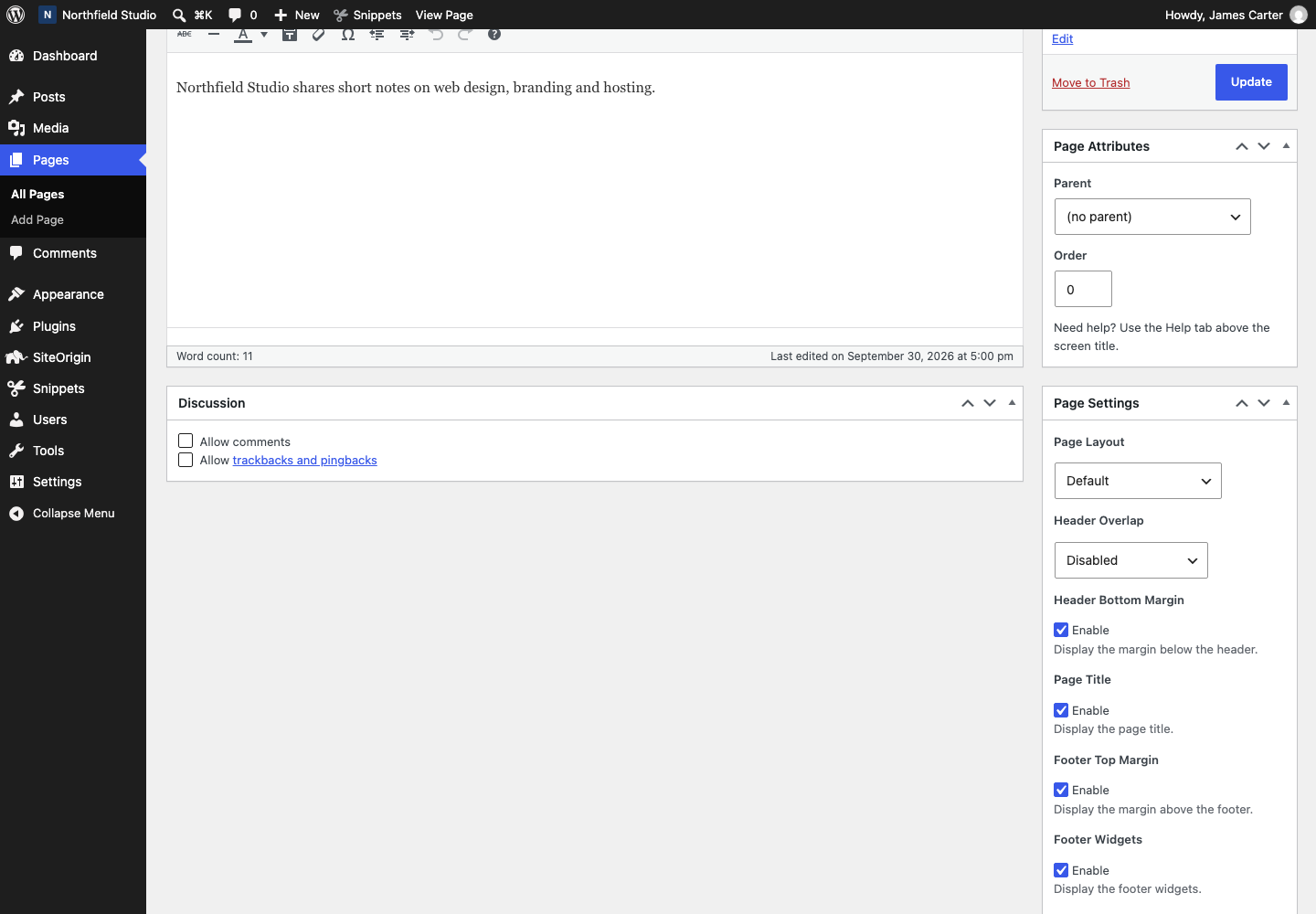
If the box is missing, open Screen Options at the top right and check Discussion. This only shows or hides the box.
Many Posts
- Go to PostsAll Posts and select the posts.
- Choose Edit in the Bulk actions menu and click Apply.
- Set Comments to Do not allow.
- Click Update.
New Posts
Go to SettingsDiscussion and clear Allow people to submit comments on new posts. The setting does not change existing posts. To close comments on old posts, select Automatically close comments on old posts, then set the number of days. Clear Allow link notifications from other blogs (pingbacks and trackbacks) on new posts to stop those too.
Every Post
The Disable Comments plugin closes comments on the whole site. After you activate it, go to SettingsDisable Comments and choose where to turn comments off.
Block Themes and the Block Editor
One Post or Page in the Block Editor
- Open the post or page and open the settings sidebar.
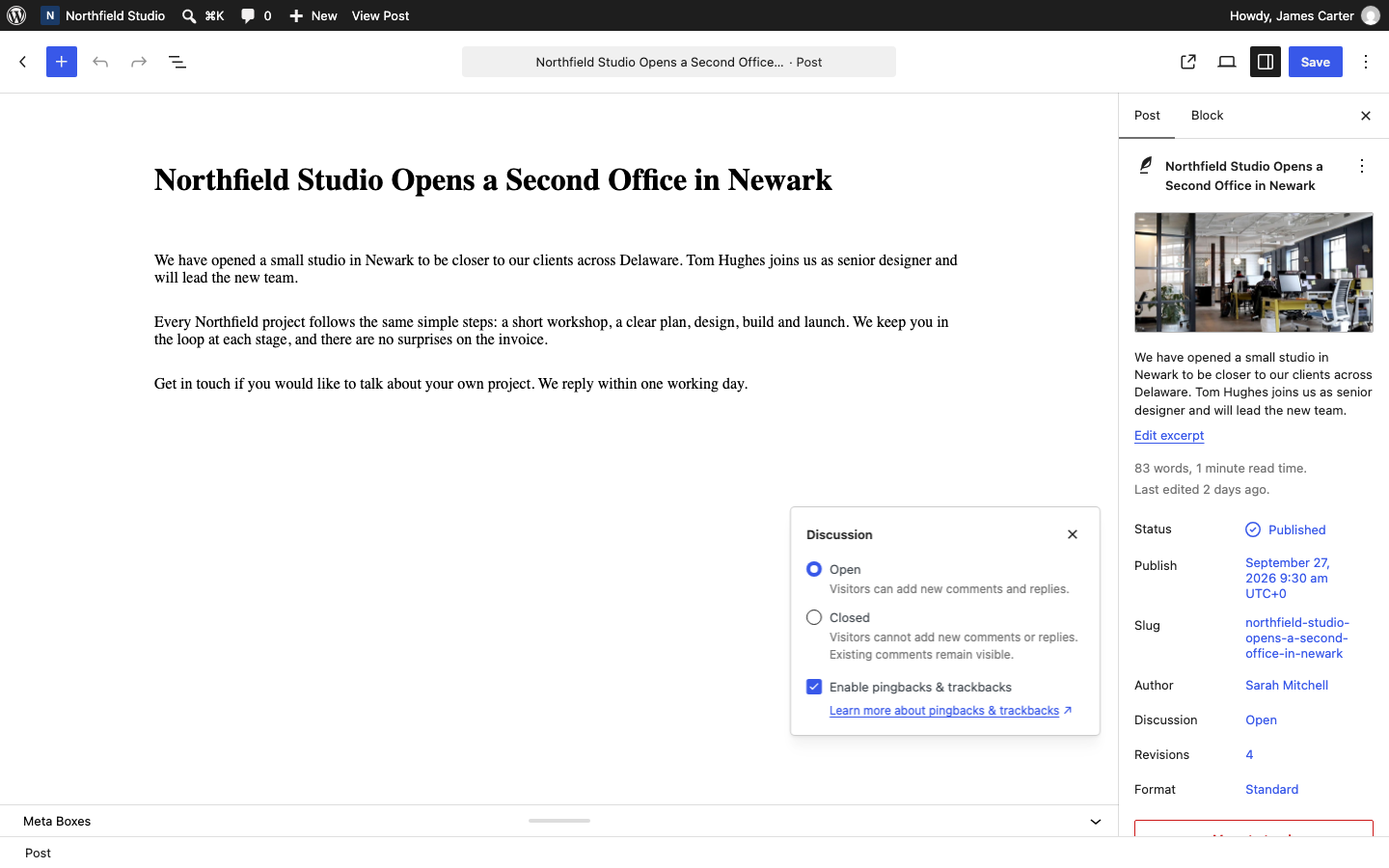
- On the Post tab, click Discussion.
- Select Closed.
- Click Update.
If Discussion is missing, click the Options menu (three dots) at the top right and click Preferences. In the General tab, under Document settings, turn on Discussion. This only shows or hides the panel. It does not change comments.
Hide the Comments Area in Templates
A block theme shows comments through the Comments block in its templates. Closed comments prevent new comments, and existing comments can still show. To remove the area, delete the block.
- Go to AppearanceEditorTemplates and open Single Posts.
- Select the Comments block and delete it.
- Repeat in Pages if that template has the block, then click Save.
More detail is in Comments in WordPress.