To hide the title of one page, turn off Page Title in the Page Settings box of Polestar or Ultra. In the Puro theme, choose a page template with No Title in its name.
Hide the Title in Polestar
- Edit the page.
- Find the Page Settings box in the right column of the editor.
- Clear the Page Title checkbox. Its label is Enable.
- Click Update.
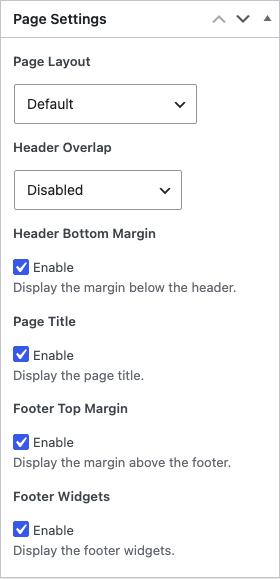
The setting works on pages. To hide post titles, add this CSS at AppearanceCustomizeAdditional CSS.
.single-post .entry-title {
	display: none;
}
This CSS hides the title on every page.
.page .entry-header {
	display: none;
}
To remove the space under the header, clear Header Bottom Margin in the same Page Settings box. See Page Settings.
Hide the Title in Ultra
- Edit the page or post.
- For a page, set Template to Default template. Page Settings work with that template only. A post has no template step.
- In the Page Settings box, clear the Page Title checkbox. Its label is Enable.
- Click Update.
The title bar also holds the breadcrumb trail, so the trail hides with the title. To remove the space under the header, clear Header Bottom Margin in the same box. See Page Settings.
Blog and Archive Pages
The blog page takes its title from Blog Page Title in AppearanceCustomizeTheme SettingsBlog. Clear the field to hide it.
For archives, search results and the 404 page, turn off Page Title in AppearanceCustomizePage Template Settings. See Page Template Settings.
Hide the Title in the Puro Theme
The Puro theme hides the title with page templates that have no title.
- Edit the page.
- Open the Template setting. In the block editor it is in the Page tab of the settings sidebar. In the Classic Editor it is in the Page Attributes box.
- Choose Default Template – No Title, Full Width Page – No Title or Full Width Page – Unconstrained Content – No Title.
- Click Update.
The three templates differ in width and sidebar. See Page Templates. This CSS hides the title on every page.
.page .page-header {
	display: none;
}
Hide the Page Title in Any Theme
- Check the page first. Edit the page and look for a template choice with “No Title” in its name, or a setting for the title in the editor sidebar. In a block theme, choose a template without a title block.
- To hide the title with CSS, open the page on your site. Right-click the element and choose Inspect. In Safari, turn on the Develop menu first and choose Inspect Element.
- Read the
classof the body tag. It holds the page ID, for examplepage-id-123. - Read the
classof the title element. Common classes areentry-titleandpage-title. - Add the rule at AppearanceCustomizeAdditional CSS in a classic theme. A block theme has no Customize screen. There, go to AppearanceEditor, click Styles, open the three-dot More menu and choose Additional CSS. Click Publish or Save. Put the body class first so that the rule affects one page only:
.page-id-123 .entry-title {
	display: none;
}
Replace 123 with your page ID and entry-title with the class you found. To hide the title on every page, remove the body class from the rule.
display: none also hides the title from screen readers. The heading stays in the page source.
Related
- Remove the Category Prefix From Archive Titles
- Polestar Page Settings
- Ultra Page Settings
- Puro Theme Page Templates