When a page on your site goes blank, shows “There has been a critical error on this website” or a form stops working with no message, the cause is a PHP error that WordPress keeps out of sight. Here’s how to find it.
WordPress has a debug mode that records each PHP error in a log file, with the full path of the file where it happened. That path names the plugin or theme to look at, so you know where to fix the problem or who to ask for help.
Check the Recovery Email First
When a plugin or theme causes a fatal error in the dashboard or on the login page, WordPress emails the Administration Email Address from SettingsGeneral. The subject is “[Site Title] Your Site is Experiencing a Technical Issue”. The email names the plugin or theme and has an Error Details section with the file and line. Open its link and log in to start recovery mode. If the error happens again, WordPress pauses that plugin or theme so you can still reach the dashboard.
A crash on the public pages alone sends no email, and WordPress normally waits 1 day before it sends another. If nothing arrives (check your spam folder too), turn on the debug log.
Add the Debug Lines to wp-config.php
Debug settings live in wp-config.php, in the main WordPress folder (such as public_html). If it is not there, look one folder up. The steps below use your Hosting File Manager.
- Log in to your hosting account, open the File Manager and go to the WordPress folder.
- Select
wp-config.phpand click Download. Keep that copy until you finish: a typo in this file can take the whole site down. - Click Edit, then Edit again in the encoding box. The editor opens in a new browser tab.
- Find the line
define( 'WP_DEBUG', false );near the end of the file. - Replace it with the 3 lines below. For a log in a private folder, read Keep the Log Private first.
- Click Save Changes and wait for the “Success!” notice.
define( 'WP_DEBUG', true );
define( 'WP_DEBUG_LOG', true );
define( 'WP_DEBUG_DISPLAY', false );
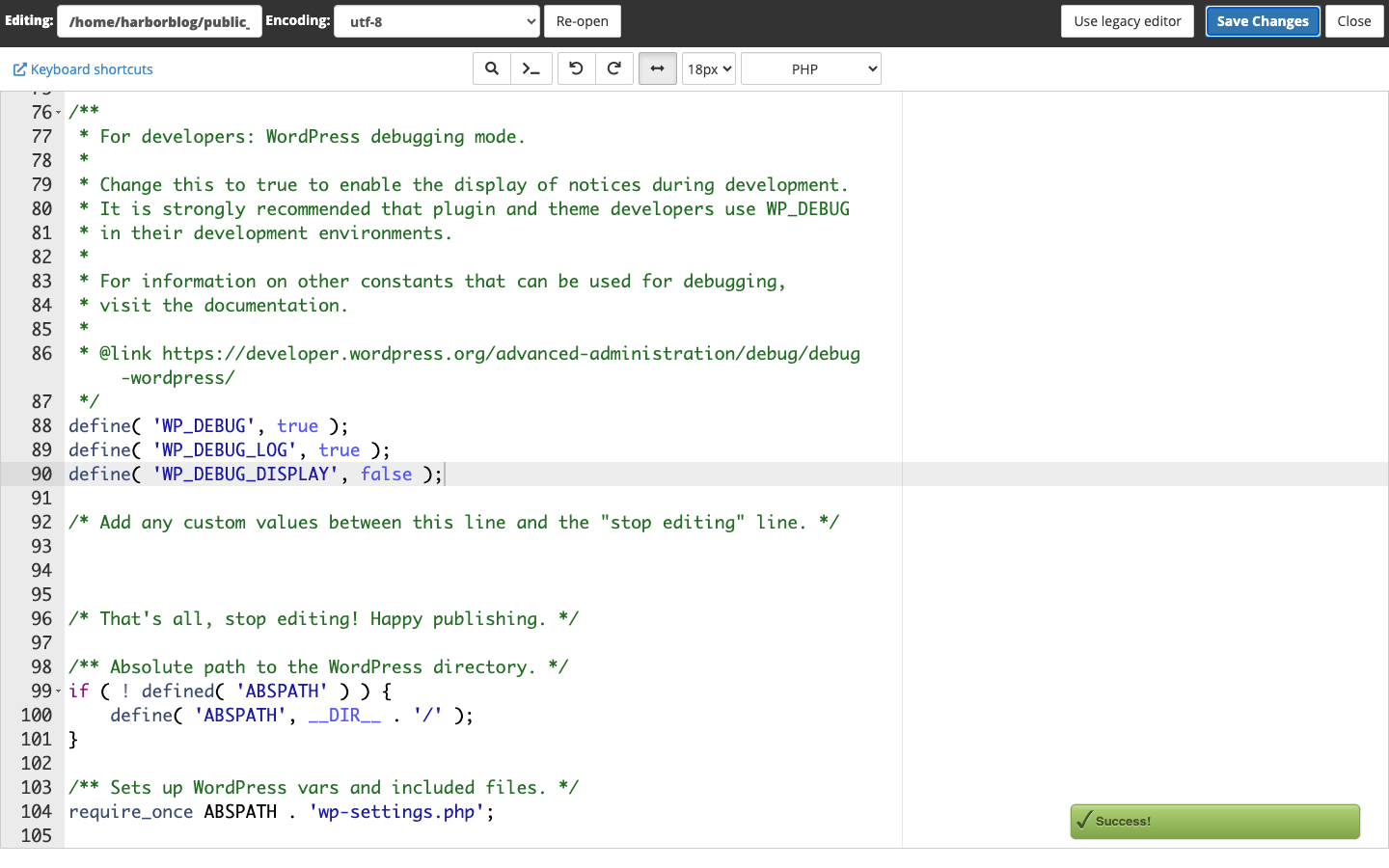
Line 2 sends PHP errors to wp-content/debug.log. Line 3 hides the messages from your visitors; without it, PHP errors can show on your public pages, so keep it on a live site.
WP_DEBUG line so the file sets it once. With the old false line left in above them, nothing changes. If the file already has a WP_DEBUG_LOG or WP_DEBUG_DISPLAY line, change that line in place too.Some hosts write a wp-config.php without a WP_DEBUG line. In that case, the 3 lines go above the comment that begins /* That's all, stop editing!. If the site breaks after you save, open the file again and undo the edit, or upload your downloaded copy in its place.
Keep the Log Private
Unless your host blocks it, wp-content/debug.log sits at a public web address, and its entries can include file paths and email addresses. A safer home is a logs folder beside public_html in your home folder. Create it in File Manager, then change the second debug line to point at a file inside it:
define( 'WP_DEBUG_LOG', '/home/harborblog/logs/php-errors.log' );
Use your own home folder path, which the File Manager shows at the top of its folder tree. If you keep the default location, delete debug.log when you finish. ToolsSite Health flags a log inside the WordPress folder as a critical issue and a log outside it as a recommended improvement.
Repeat What Broke
Load the blank page, submit the form or click the button that fails, and note the time. Then open the wp-content folder in File Manager, select debug.log and click View. With a private path, open your logs folder instead. New entries go at the bottom of the file.
Many forms and editor screens save without reloading the page, and WordPress hides PHP error text on those requests. The button or form fails with no clear message, and the error shows up in the log instead.
JavaScript errors in the browser never reach this log, because PHP never sees them. If you expected a PHP error and no log appears, ask your host whether PHP can write the file.
Parts of an Error Line
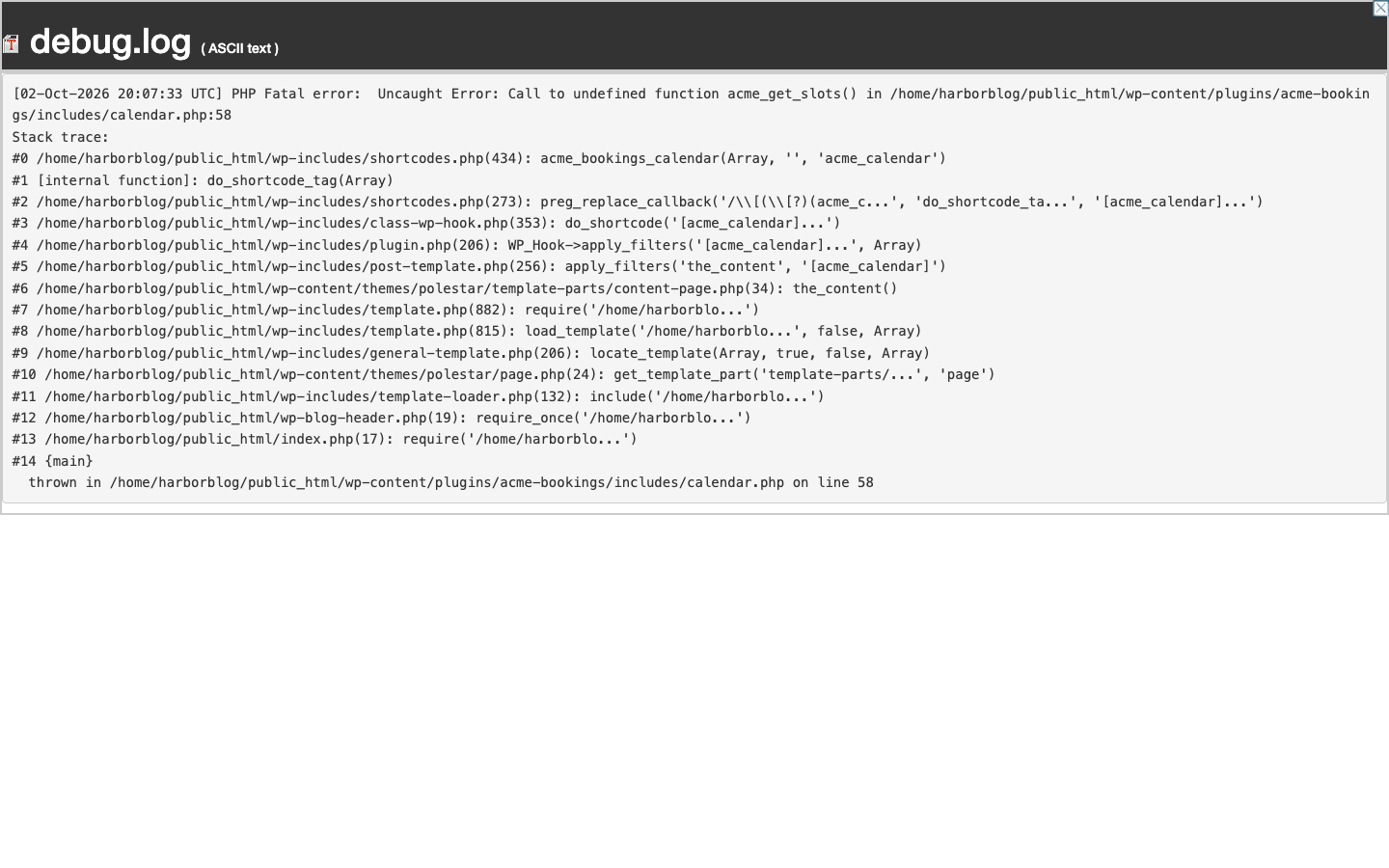
Each error starts on a new line. This example is a fatal error from a booking plugin:
[02-Oct-2026 09:41:27 UTC] PHP Fatal error: Uncaught Error: Call to undefined function acme_get_slots() in /home/harborblog/public_html/wp-content/plugins/acme-bookings/includes/calendar.php:58
- [02-Oct-2026 09:41:27 UTC]: the time, in UTC. WordPress logs in UTC, so convert it to your own time zone to match it to your test.
- PHP Fatal error: the type. Fatal and parse errors stop the page from loading. Warning, Notice and Deprecated lines rarely explain a broken page.
- Call to undefined function acme_get_slots(): what failed, written for the developer.
- /wp-content/plugins/acme-bookings/: where it failed. Here the plugin folder is
acme-bookings.
Match the Path to a Plugin or Theme
wp-content/plugins/folder-name/: a plugin. The folder name is close to the plugin’s name on PluginsInstalled Plugins. If you cannot match them, look inside the folder for the PHP file with aPlugin Name:line near the top.wp-content/themes/folder-name/: a theme, for examplepolestar,ultraorpuro, or a child theme.wp-content/mu-plugins/: a must-use plugin, which hosts add for caching and security. The Plugins screen lists the files at the top of that folder under Must-Use.wp-includes/orwp-admin/: a WordPress core file. WhenStack tracelines follow the error, they show which plugin or theme called the failing code. Send the full error and its trace with your support request.
Check Your Host’s PHP Error Log
Check your host’s log when you cannot edit wp-config.php, or when an error strikes before WordPress loads its settings and so never reaches debug.log. Once WordPress has loaded with WP_DEBUG_LOG on, PHP writes later errors to your debug log.
Your host keeps its own PHP error log too. Look for it in the logs folder in your home folder, or ask your host where it is.
Send the Error to Support
If the path points to a Puro theme or plugin, post on the Puro support forum. For any other plugin or theme, contact its author. Include:
- The error lines from the time of your test, with any
Stack tracelines under them. - The page or action that triggers the error.
- Your WordPress, PHP and theme versions. ToolsSite HealthInfo lists them under WordPress, Server and Active Theme.
Forum posts are public. Remove email addresses, customer names and any passwords or keys from the log lines before you post them.
Get AI Help Reading the Log
Paste an error line into your AI assistant for a plain-language reading and the name of the plugin in its path. Describe what failed and paste only the error lines; keep passwords, license keys, customer details and the contents of wp-config.php out of the chat.
My WordPress site fails when I {what you did, for example: submit
the booking form}. These PHP errors appeared in debug.log at that time:

{paste the error lines}

Which plugin or theme is behind these errors, and which error best
fits what I see? Then draft a short note I can send to its author.
Do not guess at a fix.
Clean Up When You’re Done
Once you’ve found the error, turn debug mode off and delete the log. Left on, the log keeps growing, and anyone who knows where to look can read it.
- Open
wp-config.phpin File Manager as before. - Put the debug lines back the way they are in your downloaded copy. On a standard install, that’s this one line:
define( 'WP_DEBUG', false );
- Click Save Changes.
- Delete
debug.logfromwp-content, or the log file in yourlogsfolder.