Scheduled edits apply your grid edits at a date and time you choose, instead of when you click save. Add a revert time, and SwiftGrid puts the old values back later, so a sale starts and ends on time without anyone at the keyboard.
Schedule Your Edits
- Make your edits in the grid as usual, for example new sale prices.
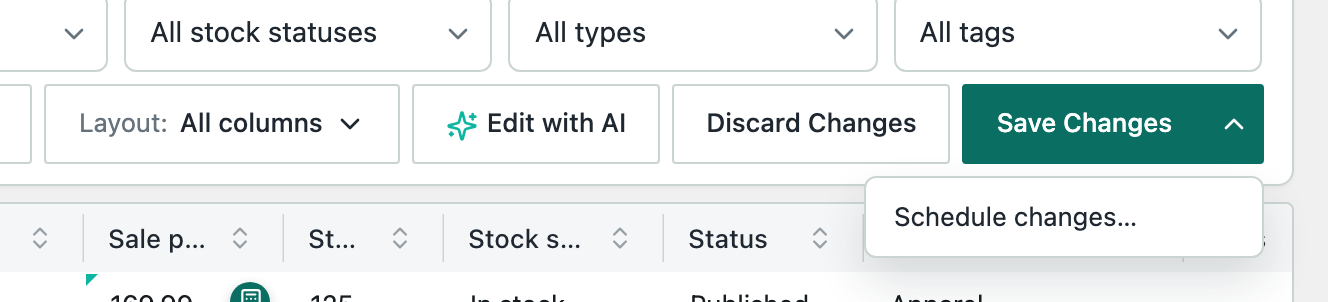
- Click the arrow next to Save Changes, then choose Schedule changes….
- Set Apply at to the date and time the edits should apply.
- To put the old values back later, set Revert at (optional).
- Click Schedule.
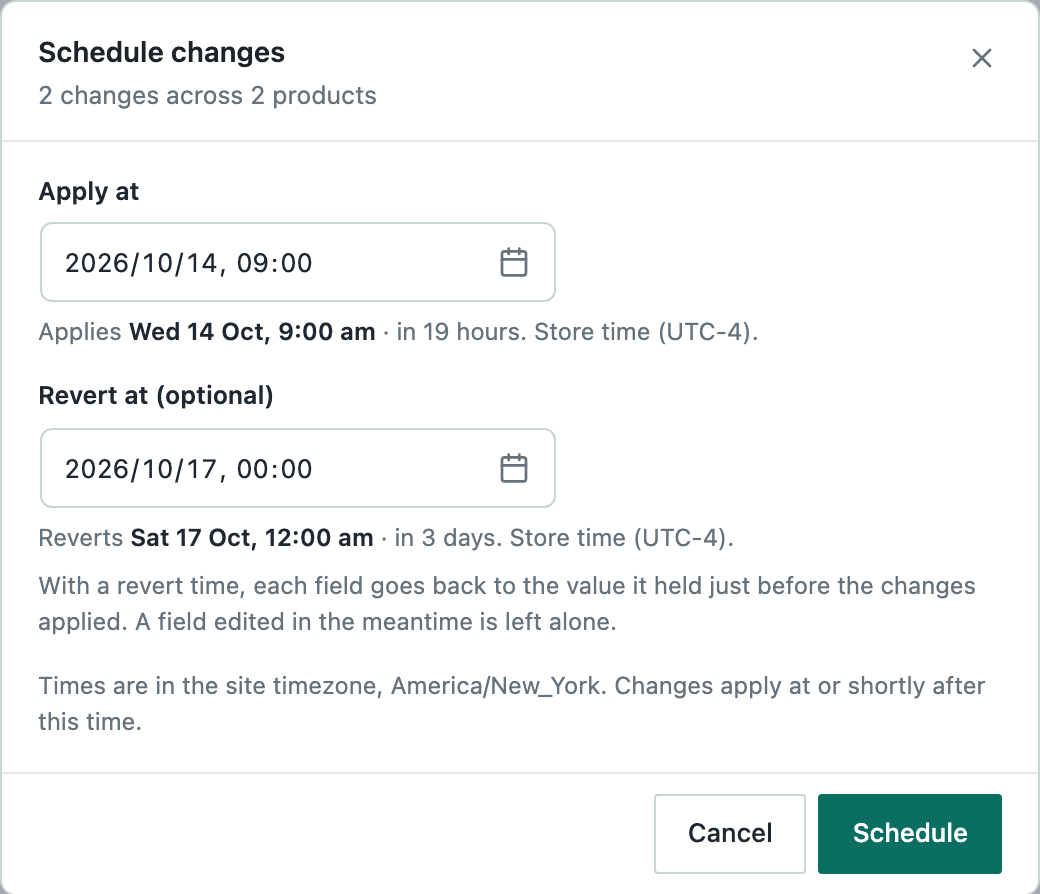
The dialog repeats each time in words, for example “Applies Wed 14 Oct, 9:00 am · in 19 hours”. Times are in your store’s time zone, set at SettingsGeneral. Your edits leave the grid and wait for their time; the grid shows your products as they are now.
When the revert time comes, each field goes back to the value it held before the edits applied. A field edited in the meantime keeps its new value.
See and Cancel Scheduled Edits
Click the count below the grid, for example 1 change scheduled. The list shows each scheduled edit with its Apply at and Revert at times, the number of changes and products, and its Status.

To stop an edit before it runs, click Cancel on its row.
When Scheduled Edits Run
Scheduled edits run on WP-Cron, WordPress’s task scheduler. WP-Cron runs when someone visits your site, so an edit applies at its time or shortly after. If your host turns WP-Cron off, check that it runs a real cron job in its place.
After an edit runs, the list shows its result, for example Applied or Applied, reverted, with a count of any products that failed or were skipped.