SwiftGrid lets an AI assistant work on your catalog. The assistant can look up products, save row edits and change prices in bulk, and every edit runs on your server through the same save path as the grid. It connects through the WordPress MCP Adapter plugin and works as your user, with an application password.
Before You Start
- WordPress 6.9 or later, which includes the Abilities API.
- The MCP Adapter plugin, installed and active. Install it from PluginsAdd Plugin.
- An AI assistant that supports the Model Context Protocol (MCP).
- A user account that can edit products. The assistant can do what that account can do, and no more.
Create an Application Password
- In the admin menu, go to UsersProfile.
- Scroll down to Application Passwords.
- In New Application Password Name, enter a name that tells you where the password is used, for example “AI assistant”.
- Click Add Application Password.
- Copy the new password now. WordPress shows it only once.
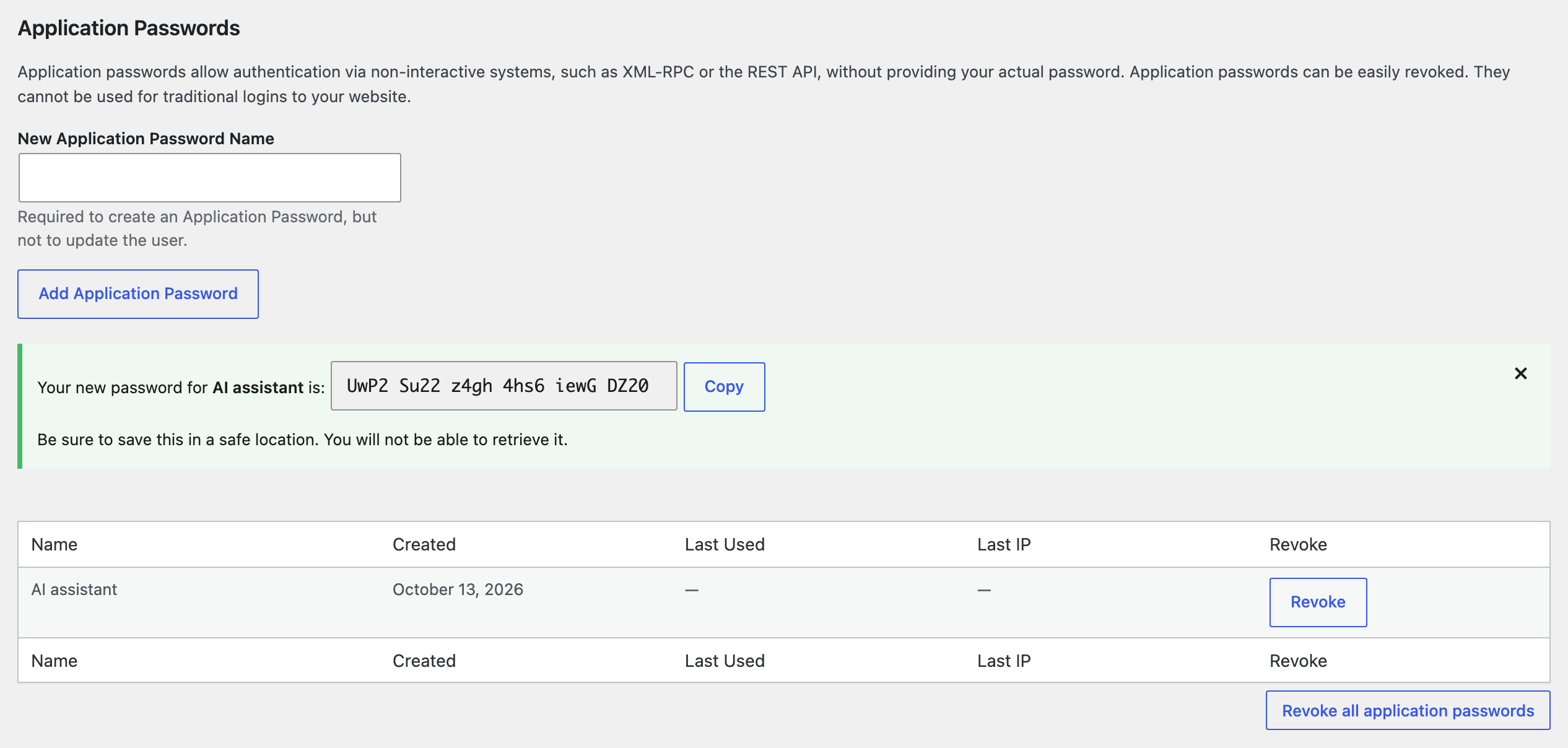
To cut the assistant off later, click Revoke next to the password.
Connect Your Assistant
Your site’s MCP address is:
https://example.com/wp-json/mcp/mcp-adapter-default-server
Replace https://example.com with your site’s address. If your site uses plain permalinks (SettingsPermalinks), the address is https://example.com/?rest_route=/mcp/mcp-adapter-default-server.
An assistant that connects to MCP servers over HTTP needs that address, your WordPress username and the application password. An assistant that runs local MCP servers can connect through the @automattic/mcp-wordpress-remote package. Add a server like this one to its MCP configuration file:
json
 {
 "mcpServers": {
 "my-store": {
 "command": "npx",
 "args": ["-y", "@automattic/mcp-wordpress-remote@latest"],
 "env": {
 "WP_API_URL": "https://example.com/wp-json/mcp/mcp-adapter-default-server",
 "WP_API_USERNAME": "your-username",
 "WP_API_PASSWORD": "xxxx xxxx xxxx xxxx xxxx xxxx"
 }
 }
 }
 }
The configuration file’s place and name depend on your assistant. Restart the assistant after you save the file.
What the Assistant Can Do
The MCP Adapter lists your site’s abilities, and SwiftGrid adds five of them:
- List products (
swiftgrid/list-products): finds products by status, category, stock status, type, tag or search, and returns their fields. - Save product rows (
swiftgrid/save-products): edits fields on products you name by ID. - Bulk update product prices (
swiftgrid/bulk-update-products): sets, raises, lowers or rounds the regular or sale price of every product that matches a filter, up to 1000 products per call. - Get a change set (
swiftgrid/get-change-set): shows what an earlier edit changed, with each value before and after. - Undo a change set (
swiftgrid/rollback-change-set): puts back the values an earlier edit replaced.
Ask in plain words, for example: “List the draft products in the Bath category.” or “Raise every Kitchen & Table regular price by 5%.”
Every Edit Is Recorded
SwiftGrid records each grid save, CSV import and assistant edit as one change, with each product’s value before and after. Your assistant can look up a change and undo it. A field edited since keeps its new value, and a product that a CSV import created stays in your store. SwiftGrid keeps changes for 90 days.
With SwiftGrid Pro you can browse these changes in History and roll them back from the grid. Pro also holds an assistant’s edits until a store manager approves them; see Approving AI and Agent Edits.
Related
- Getting Started with SwiftGrid
- Change History and Rollback (SwiftGrid Pro)
- Approving AI and Agent Edits (SwiftGrid Pro)