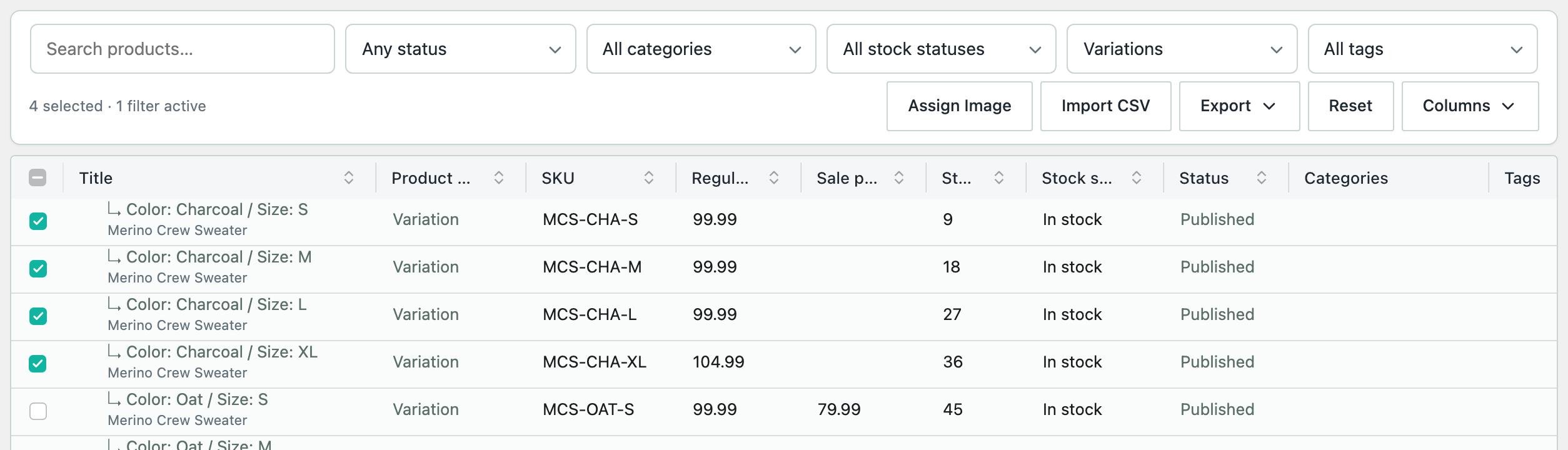
SwiftGrid edits the variations of variable products in the same grid as your other products. You can open one product’s variations under its row, or list the variations of every variable product in one view.
Edit One Product’s Variations
- To list only your variable products, choose Variable product in the type filter.
- Click the arrow next to a product’s title. Its variations open below it, one row each.
- Edit a variation’s price, stock or other fields like any other cell.
- Click Save Changes.
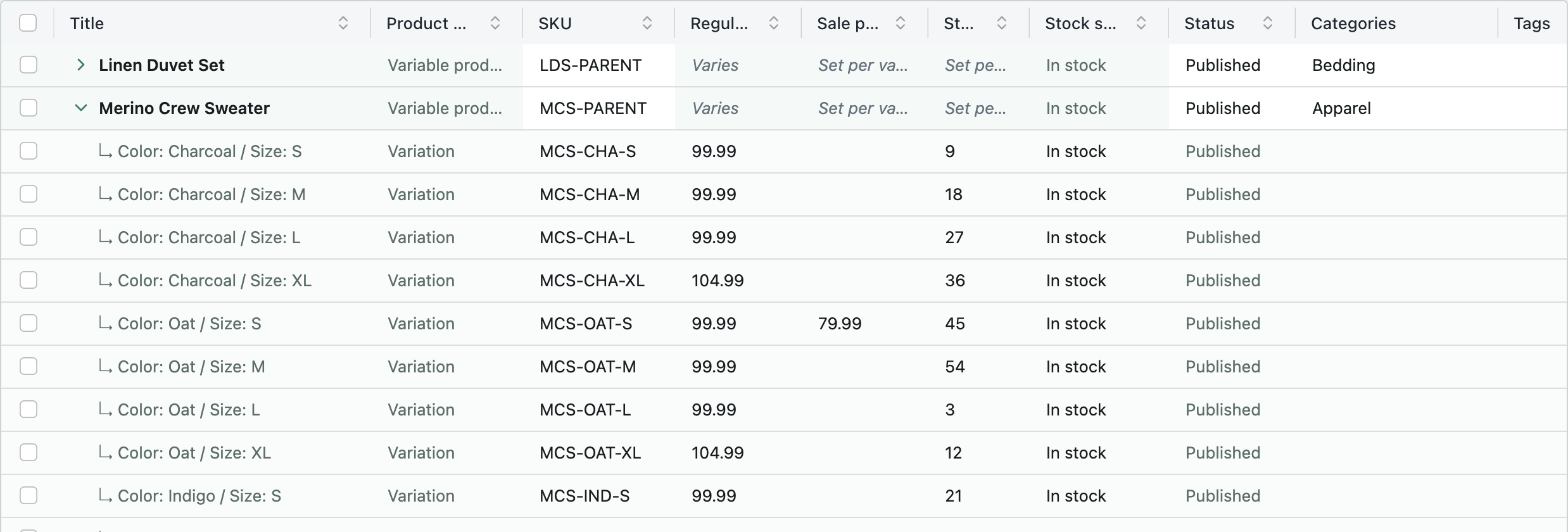
A variation row’s title shows its attributes, for example “Color: Charcoal / Size: XL”. On the product’s own row, the price and stock cells show Varies or Set per variation, because each variation holds its own values.
Save or discard a product’s variation edits before you close its variations. SwiftGrid keeps them open while they have unsaved edits.
Edit Variations From Many Products
Choose Variations in the type filter. The grid then lists the variations of every variable product, with the parent product’s name under each title. The other filters and the search still apply, so you can narrow the list to one category or to the variations that match a search.
The cell calculator works here too, so you can change the prices of many variations at once. See Bulk Editing Prices with the Cell Calculator.
Give Many Variations the Same Image
- Choose Variations in the type filter.
- Select the variations that share a photo.
- Click Assign Image.
- Choose the image, then click Use this image.
- Click Save Changes.