Every editable cell in SwiftGrid works like a spreadsheet cell: click it, change the value, and move on. Your edits stay in the grid until you save them, so you can check them, undo them or throw them away first.
Columns You Can Edit
The grid has 17 editable product columns:
- Title, SKU and Purchase note
- Regular price and Sale price
- Stock (the stock quantity) and Stock status
- Status (Published or Draft)
- Categories and Tags
- Image (the featured image)
- Weight, Length, Width and Height
- Shipping class and Tax class
The Product Type column shows each product’s type and can’t be edited. If WooCommerce’s Cost of Goods Sold feature is on, a cost column joins the grid and you can edit it the same way.
On a variable product’s row, the price and stock cells show Varies or Set per variation, because those values belong to each variation. See Editing Variations.
Edit a Cell
- Click the cell.
- Type the new value. To replace the whole value, select it first with Ctrl+A (Cmd+A on a Mac).
- Press Enter, or click another cell.
A small triangle in the cell’s corner marks the edit, and the line above the grid counts your unsaved edits.
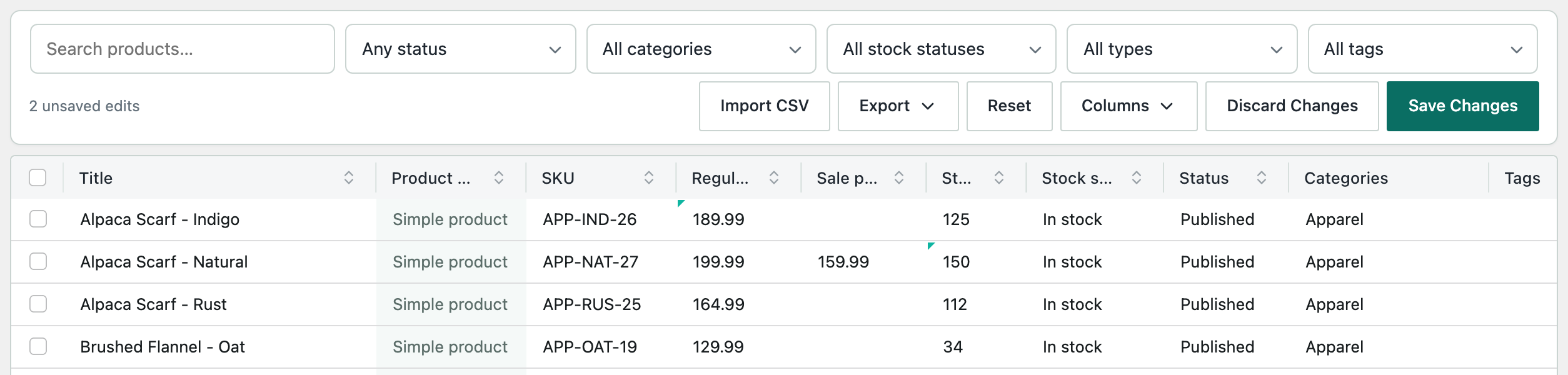
To paste a value, copy it from your spreadsheet app, click the cell and paste it. SwiftGrid pastes one value at a time.
Choose From a List
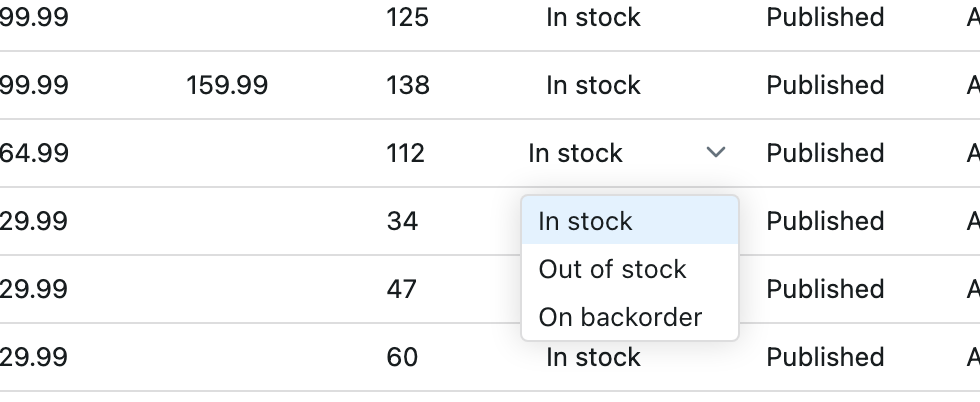
Stock status, Status, Shipping class and Tax class open a list when you click them. Click the value you want.
Set Categories and Tags
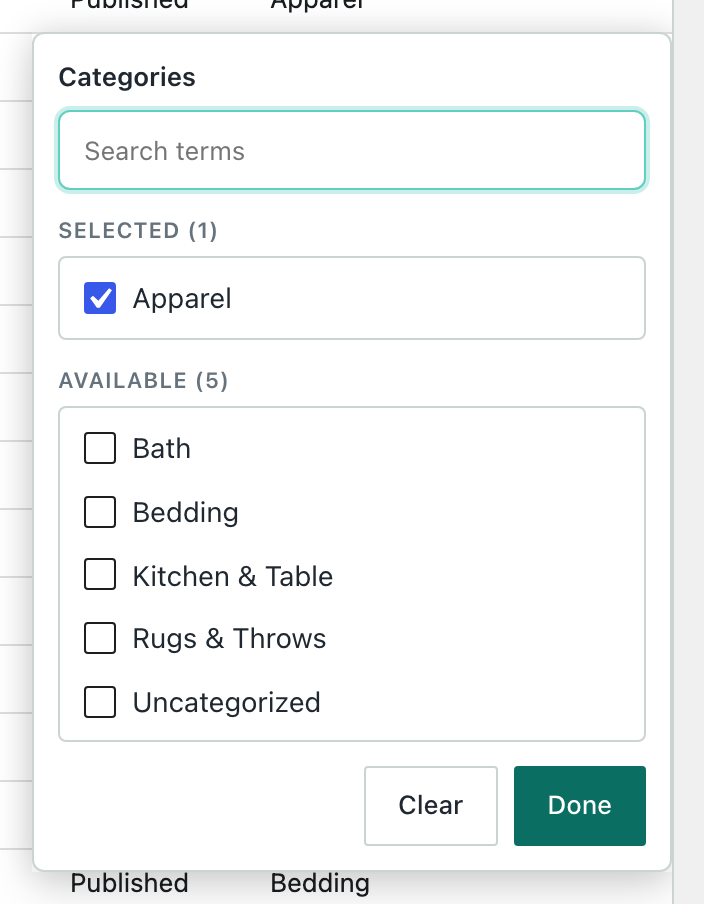
Click a Categories or Tags cell to open the term picker. The picker lists the product’s current terms under Selected and the rest under Available.
- Type in the search field to find a term.
- Select a term to add it, or deselect it to remove it.
- Click Done.
Clear deselects every term.
Change the Image
Click an Image cell to open the Media Library. Choose an image, then click Use this image. You can also upload a new image from the Upload files tab.
Move Around With the Keyboard
- The arrow keys move between cells.
- Enter confirms an edit.
- Ctrl+Z undoes your last edit and Ctrl+Y redoes it (Cmd+Z and Cmd+Shift+Z on a Mac). Undo and redo work until you save.
- Ctrl+S (Cmd+S on a Mac) saves.
Save or Discard Your Edits
Click Save Changes to write every edit to your store at once. Click Discard Changes to drop them all.
If you change the search or a filter while you have unsaved edits, SwiftGrid asks “You have unsaved changes. Discard them?” Click Cancel to keep your edits, then save them before you filter.
If another user saved the same product after you loaded the grid, SwiftGrid doesn’t overwrite their change. It shows “This product was modified by another user. Please reload.” Reload the page, then make your edit again.