Edit with AI turns a request in plain English, such as “Raise regular prices 8%”, into a bulk edit. SwiftGrid shows you a preview of every product it will change, with each value before and after, and changes nothing until you apply it. One click undoes it.
Before You Start
Connect your AI provider. See Connecting an AI Provider.
Describe, Review and Apply
- Filter the grid to the products you want to change, or select them. See Searching and Filtering Products.
- Click Edit with AI. The Scope at the top of the panel shows which products your request can change, for example “all 19 filtered products”.
- Type your request, or click a starter such as Raise prices 10%.
- Click Preview changes. Your provider reads the request, and SwiftGrid builds the preview. Nothing changes yet.
- Read the preview. It names each change, for example “Increase Regular price by 8%”, and lists each product with its value before and after.
- If the preview is right, click Apply to 19 products (the button shows your number of products). If it isn’t, click Refine and reword your request.
- Click Done to close the result.

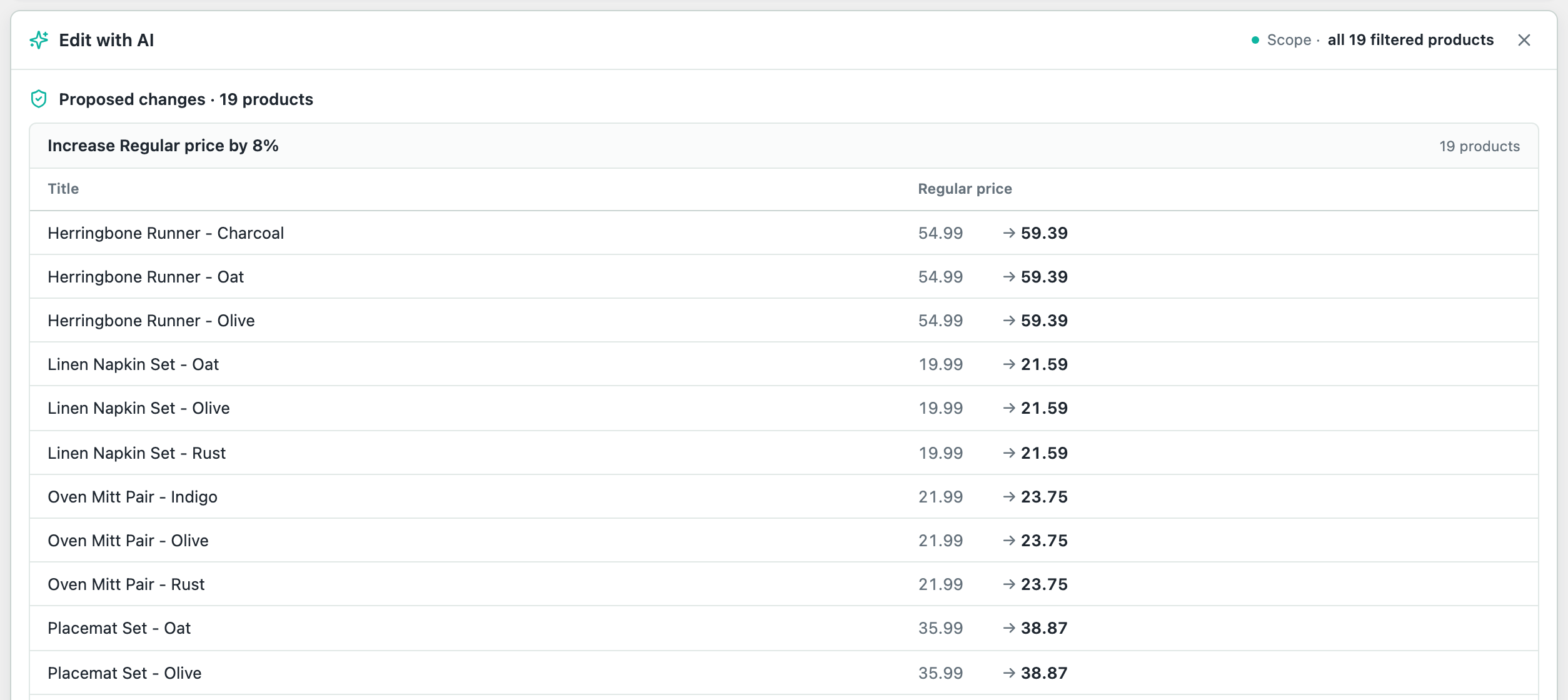
SwiftGrid applies the change through the grid’s own save path, records it in History, and reloads the grid with the new values.
Undo a Change
Right after you apply a change, the panel shows Undo. Click it to put back every value the change replaced. Later, roll the change back from History; see Change History and Rollback.
What You Can Ask For
Edit with AI changes these fields: Status, Regular price, Sale price, Stock (quantity), Stock status, Categories and Tags. It can set a value, add or subtract an amount or a percentage, round to an increment, and add or remove categories and tags. One request can hold up to five changes. Categories and tags must already exist: SwiftGrid never creates a term, and it tells you when a request names one your store doesn’t have.
A request can touch up to 1000 products. Narrow your filter or selection if it matches more.
Read the Preview Before You Apply
The preview shows what SwiftGrid will do, which can differ from what you meant. Products the change can’t apply to are skipped and counted. In this example, only two products had a sale price to lower, so the other 17 were skipped. Show the 17 skipped products in the grid lists them.
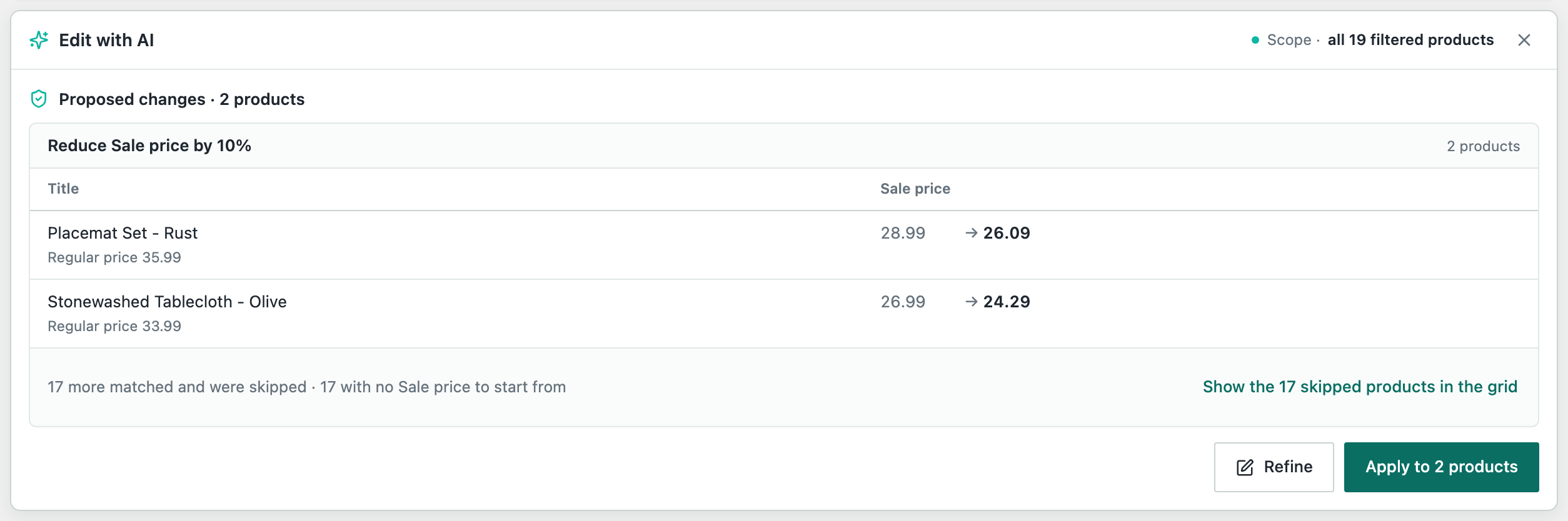
If a preview doesn’t match your intent, click Refine and say it another way. Name the field and the change, for example “Lower sale prices 10%”. If SwiftGrid can’t turn a request into one of the changes above, it says so and changes nothing.
Ask for Approval First
To have AI changes wait for a store manager’s approval, turn on Require approval for AI command box applies. See Approving AI and Agent Edits.