SwiftGrid Pro records each change to your products in History: grid saves, CSV imports, Edit with AI changes and edits from your AI assistant. Each entry keeps every product’s value before and after, so you can see what changed and roll a whole change back in one click.
Open History
Click the change count below the grid, for example 2 changes recorded. History lists the newest 50 changes.
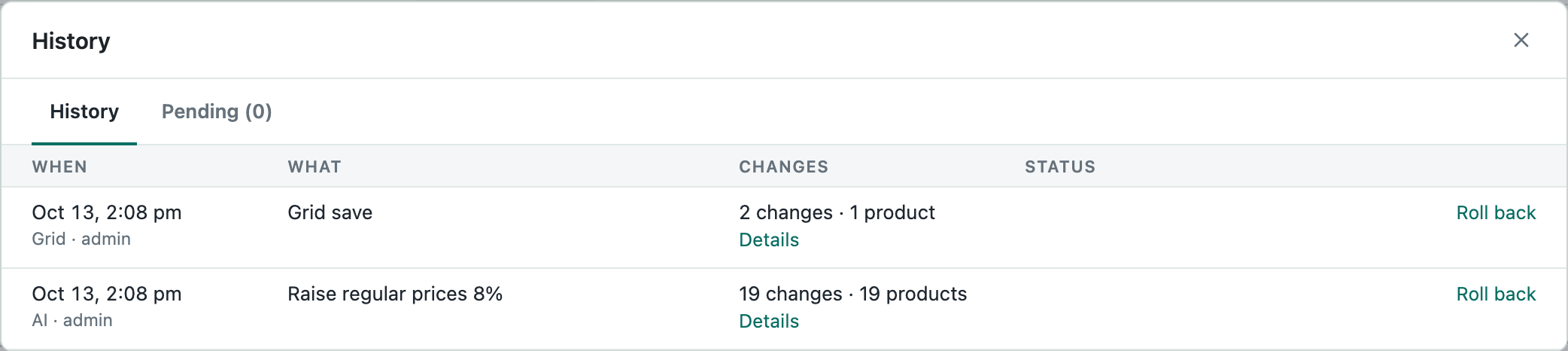
Each row shows:
- When: the date and time, and below it the source and the user, for example “AI · admin”. The sources are Grid, CSV, AI and Agent (your AI assistant).
- What: the change, for example “Grid save” or the request you typed into Edit with AI.
- Changes: the number of field changes and products.
- Status: whether the change was rolled back, and with what result.
Click Details to see each product, field and value before and after.
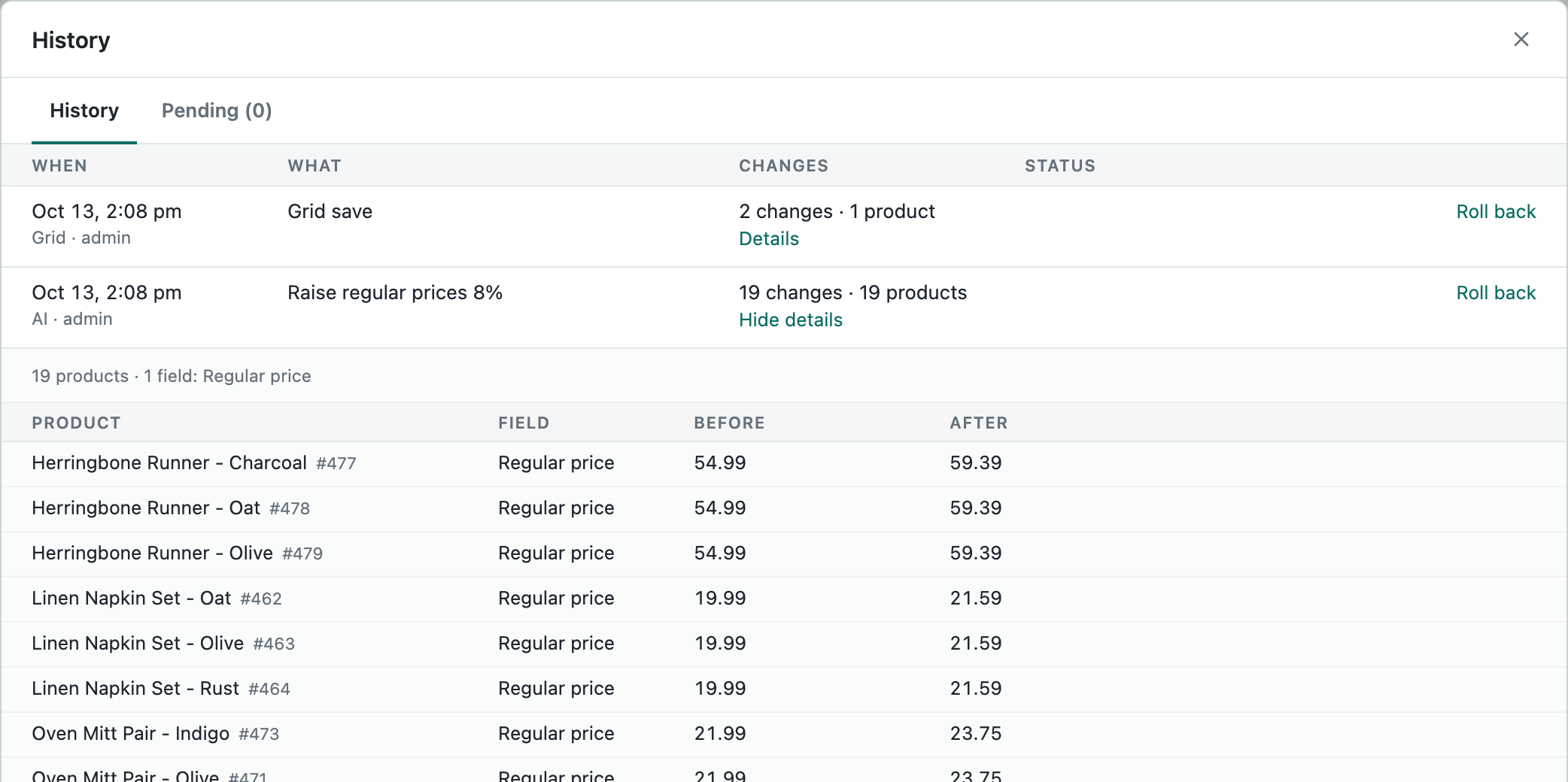
Roll Back a Change
Click Roll back on the change’s row. SwiftGrid puts back each value the change replaced and shows a result for each product:
- Restored: the value is back.
- Edited since. Now: 39.99: someone changed this field after the change you rolled back, so SwiftGrid kept the newer value.
- Already at this value: the field already held the old value.
The Status column then counts the results, for example “18 restored, 1 skipped”. A product that a CSV import created stays in your store.
How Long SwiftGrid Keeps Changes
SwiftGrid keeps each change for 90 days.