SwiftGrid exports your products to a CSV file and imports your edits back. Export a view, edit the file in your spreadsheet app, then import it: SwiftGrid matches each row to its product by ID and checks every row before it changes anything. An import can also create new simple products.
Export Products
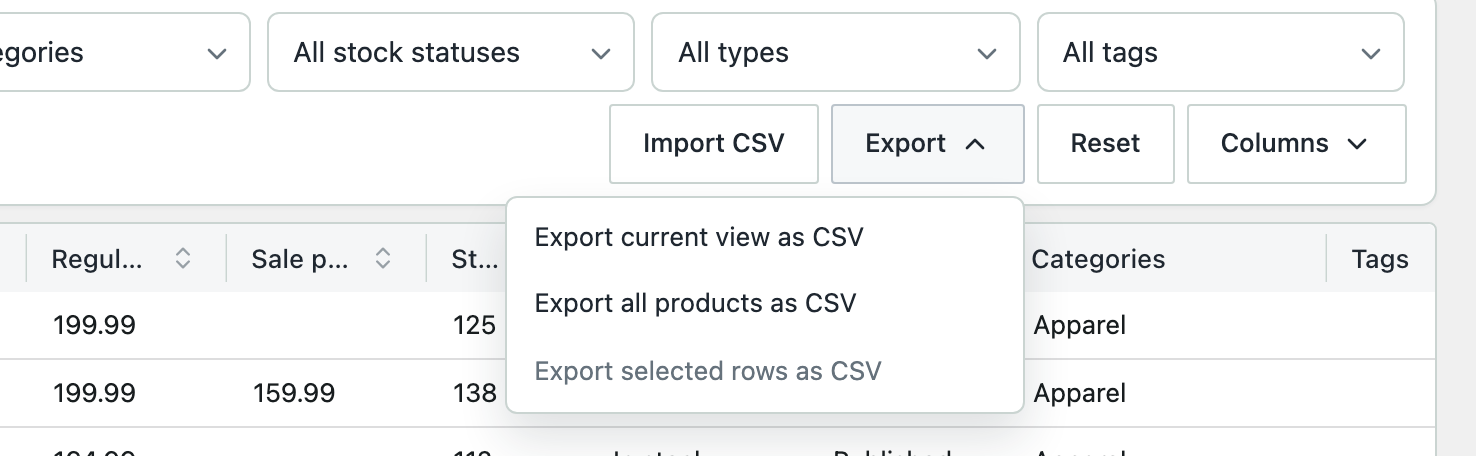
- Filter the grid to the products you want, or select the rows you want.
- Click Export.
- Choose one of these:
- Export current view as CSV: the products the grid shows now, with your filters and search.
- Export all products as CSV: every product, with no filters.
- Export selected rows as CSV: only the rows you selected.
The file has a Version column and an ID column first, then the product columns. Variable products come with their variations. The Image column isn’t exported.
SwiftGrid Pro adds Excel (.xlsx) versions of the same three exports.
Edit the File
Open the file in your spreadsheet app and change the values you want. Keep the Version and ID columns as they are: ID tells SwiftGrid which product each row belongs to, and Version lets SwiftGrid map the columns for you. Save the file as CSV.
Import the File
- Click Import CSV.
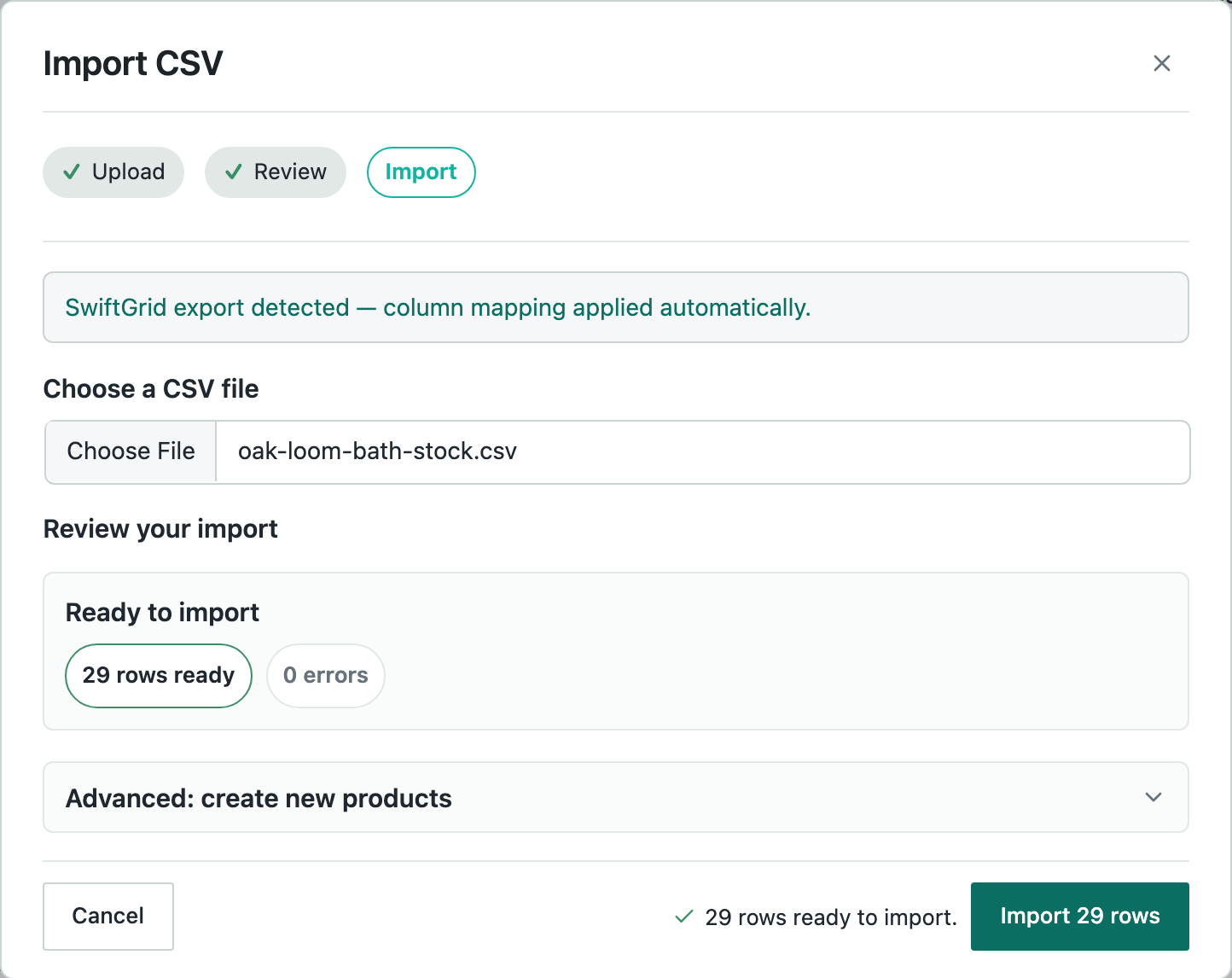
- Click Choose File and choose your CSV file. SwiftGrid reads the file and checks each row.
- Check the review. The message “SwiftGrid export detected” means SwiftGrid mapped the columns from the file’s header for you. The review counts the rows ready to import and the rows with errors.
- Click Import (the button shows the number of rows, for example Import 29 rows).
- When the import completes, click Done. The grid reloads with the new values.
If your file didn’t come from SwiftGrid, the dialog asks you to map each CSV column to a grid column, or to skip it, before it checks the rows. Map a column to ID at least.
If some rows have errors, the review groups them by reason, for example “rows for unknown products”. Click Download errors as CSV to get a list of them. The other rows still import.
Create New Products
A row with an empty ID can become a new simple product.
- In the review, open Advanced: create new products.
- Enable Create new products when ID is blank.
- Click Import.
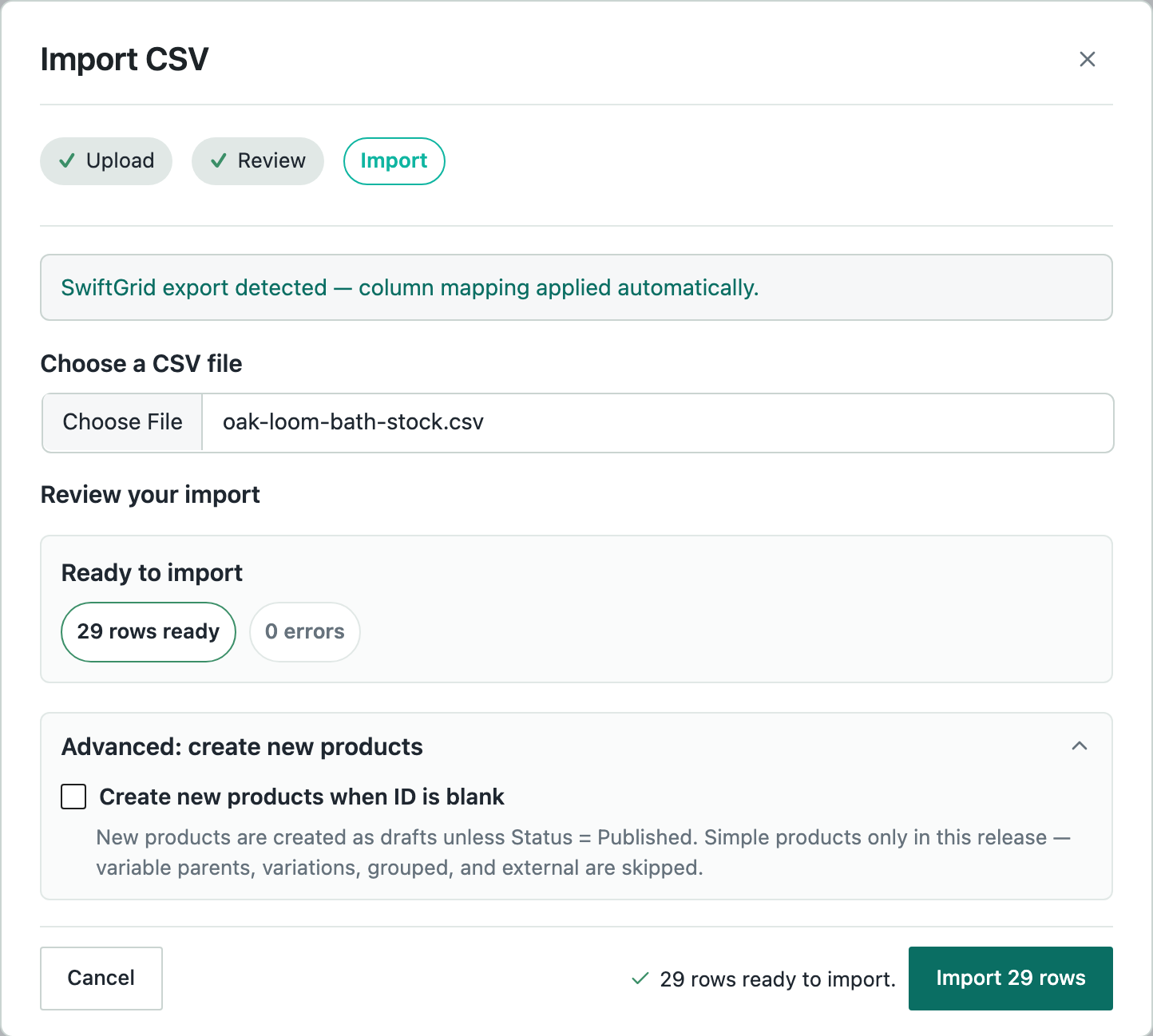
New products are drafts unless the row’s Status is Published. Each new product needs a title, and a SKU that no other product uses. The import skips rows for variable products, variations, grouped products and external products.