The cell calculator changes regular or sale prices across many products in one step. It can set a price, raise or lower it by an amount or a percentage, round it, or make it end in .99 or .95. Like any grid edit, the new prices stay unsaved until you click Save Changes.
Change Prices Across Many Products
- Filter the grid to the products you want to change. See Searching and Filtering Products.
- Select the products. To select every product in the view, select the checkbox in the header row.
- Click a Regular price or Sale price cell in one of the selected rows.
- Click the calculator button in the cell.
- Choose an Operation and enter an Amount. The Quick fill buttons enter 1, 5 or 10.
- Check the Current value and Result for the row you clicked.
- Click Apply.
- Check the new prices, then click Save Changes. Your shop shows the new prices at once.
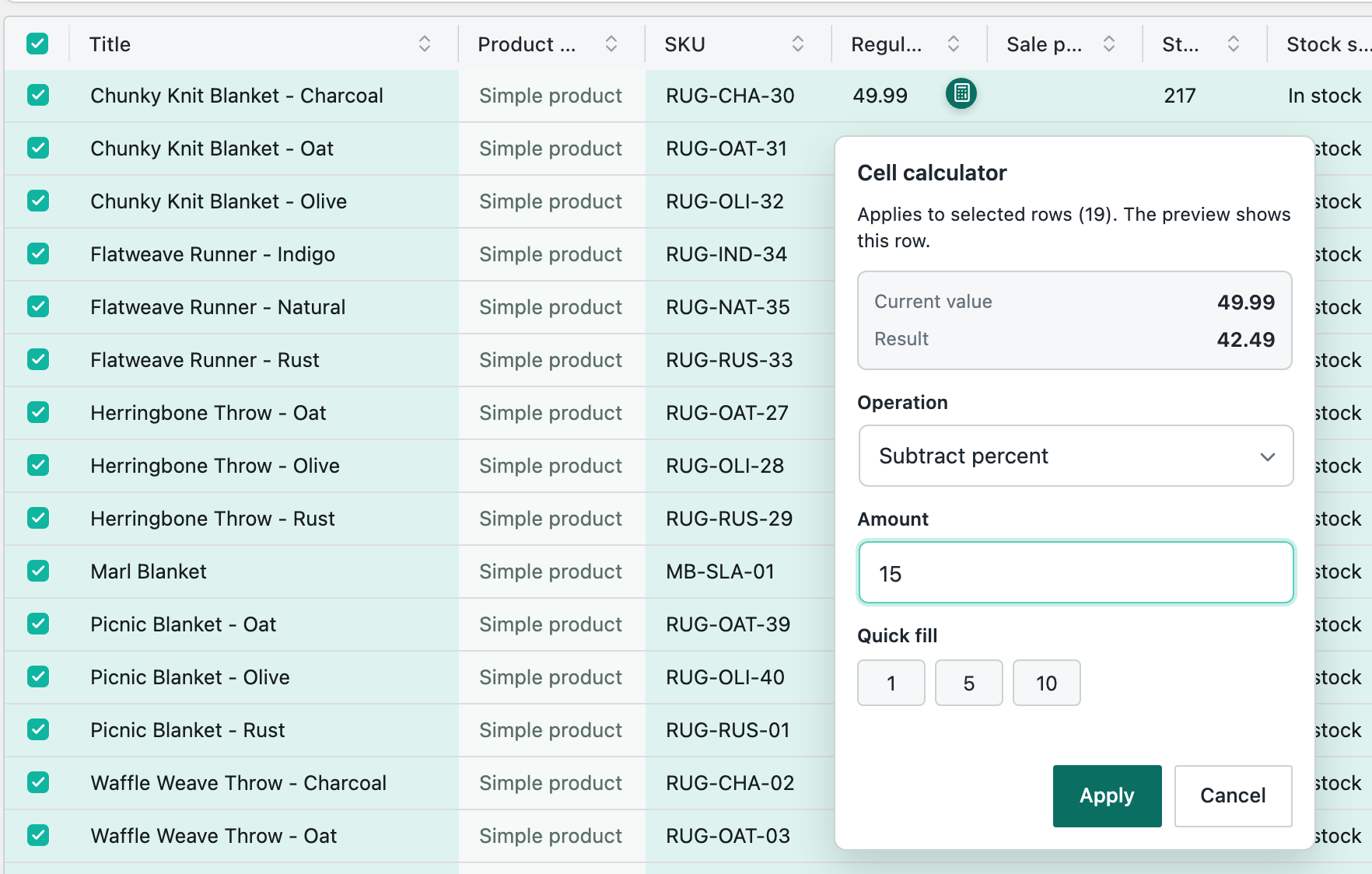
The calculator changes the column you clicked in. To change regular and sale prices, apply the calculator once in each column.
The line under the calculator’s title says where your change goes: “Applies to selected rows (19).” With no rows selected, the calculator changes only the cell you clicked.
Operations
- Set value: every selected row gets the amount you enter.
- Add amount and Subtract amount: add or subtract a fixed amount, for example 5.
- Add percent and Subtract percent: raise or lower the price by a percentage, for example 15.
- Round to nearest increment: round to the increment you enter, for example 0.5 or 5.
- End in .99 and End in .95: keep the whole dollars and replace the cents. These need no amount. 42.49 becomes 42.99.
The adding, subtracting and rounding operations need a price to start from. A row with no price in that column is skipped, and the status bar counts the skipped rows.
Related
- Editing Products in the Grid
- Searching and Filtering Products
- Editing Products with AI (SwiftGrid Pro)
Was this helpful?