Ultra can place a full width slider between the header and the content of any page. It works with the Smart Slider 3 and MetaSlider plugins. Set the home page slider in AppearanceCustomizeTheme SettingsHome. Set a slider for any other page in the Page Slider box.
Add a Slider to the Home Page
- Go to PluginsAdd Plugin. Install and activate Smart Slider 3.
- Create a slider in the Smart Slider 3 menu item that the plugin adds to the WordPress admin menu.
- Go to AppearanceCustomizeTheme SettingsHome.
- Set Home Page Slider to Smart Slider: (your slider name).
- Click Publish.
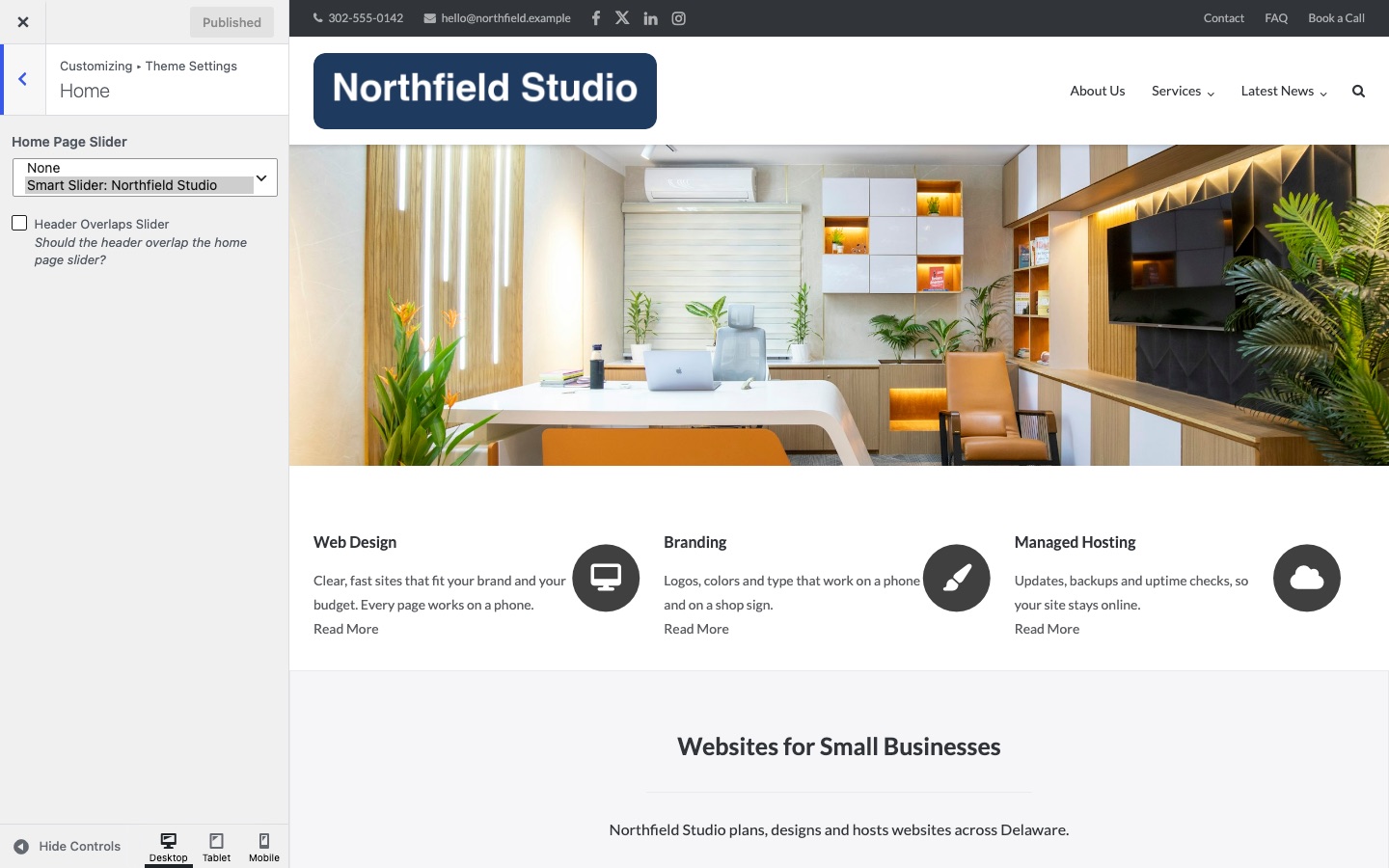
A new install has no slider. Home Page Slider is set to None. To remove a slider later, set it back to None.
Home Settings
Home Page Slider
Picks the slider for the home page. The list shows the Smart Slider and MetaSlider sliders on your site, up to 200 of each, named Smart Slider: (name) and MetaSlider: (name). Default: None.
Stretch Home Slider
Stretches the slider to the full width of the screen. It works when Layout Bound is Full Width in Layout. It appears only when MetaSlider is active. Default: on.
Header Overlaps Slider
Lets the header sit over the top of the slider. The overlap applies on screens 1024px wide and above. It appears when Smart Slider 3 or MetaSlider is active. Default: off. To change the header color while it overlaps, see Custom CSS Snippets.
Add a Slider to Any Page
Edit the page and find the Page Slider box in the right column.
- Set Display Page Slider to your slider. The list has the same choices as Home Page Slider.
- Turn on Stretch Page Meta Slider to stretch a MetaSlider slider. The option appears for MetaSlider only.
- Turn on Overlap Header to put the header over the slider.
- Click Update.
When a page is your static home page, its Page Slider box and the Home Page Slider setting stay in sync. A change in one changes the other.
Polylang and WPML
Ultra uses 1 Home Page Slider setting for the home page in every language. You cannot choose a different slider for each language in the Page Slider box. For a slider per language, set Home Page Slider to None. Then add a Smart Slider 3 widget to each translated home page with Page Builder. Follow the steps in the next section, and use the Smart Slider 3 widget in place of the Hero widget.
Use the Hero Widget Instead
The SiteOrigin Hero widget can act as your slider. You need Page Builder by SiteOrigin and the SiteOrigin Widgets Bundle.
- Go to AppearanceCustomizeTheme SettingsHome and set Home Page Slider to None.
- Edit your home page and open the Page Builder tab.
- Click Add Row and choose 1 column.
- Edit the row. In the Layout tab, set Row Layout to Full Width Stretched.
- Move the row to the top of the page.
- Click Add Widget and insert the Hero widget from the Widgets Bundle.
- In the Page settings box, turn off Header Bottom Margin. This removes the space below the header, so the Hero widget sits against it.