Ultra can use a custom home page built with Page Builder by SiteOrigin. You edit it at AppearanceHome Page. The page has a Custom Home Page toggle at the top.
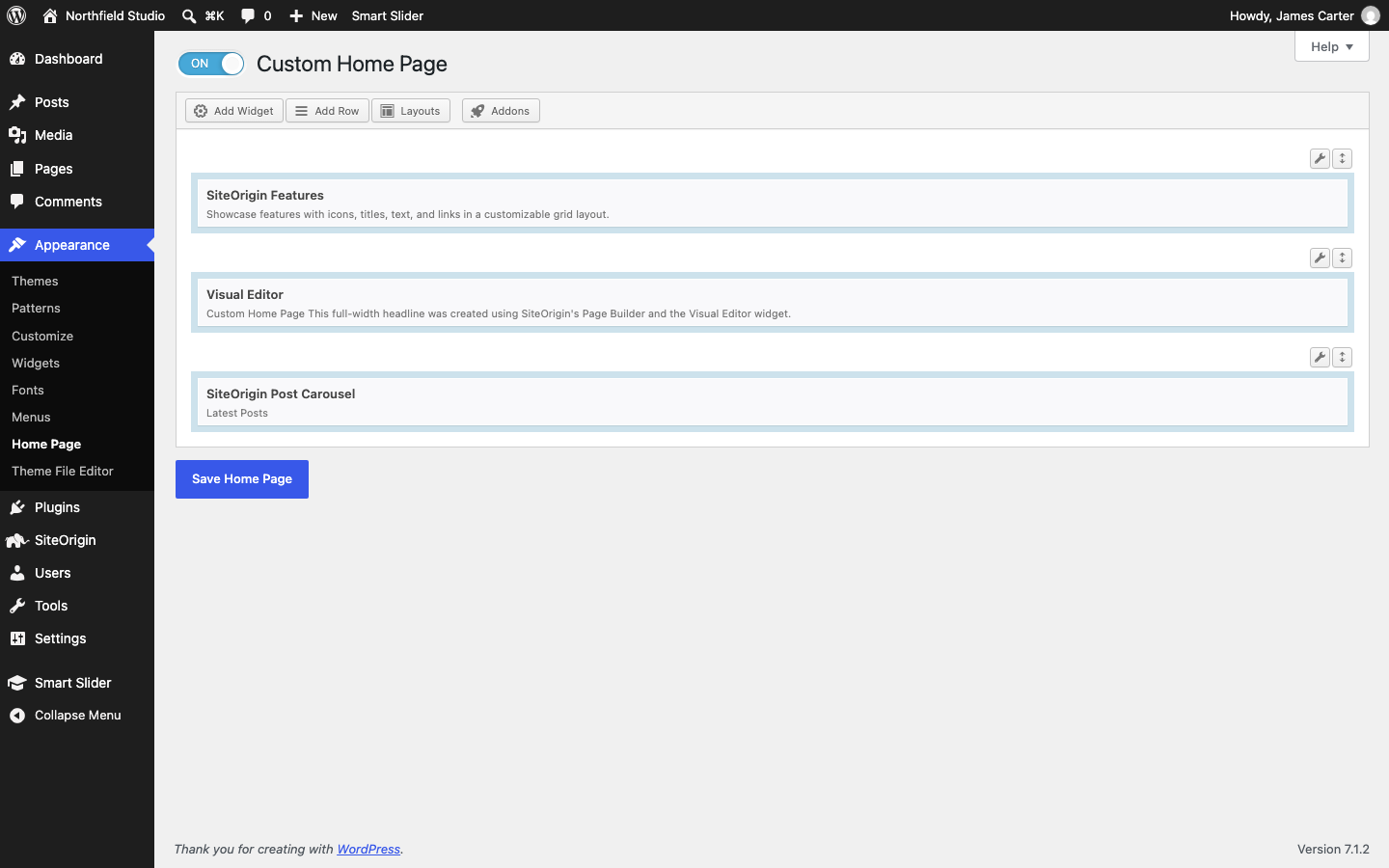
Set Up the Custom Home Page
- Install and activate Page Builder by SiteOrigin in PluginsAdd Plugin. Before you install it, the Home Page screen shows an Install Page Builder link.
- Go to AppearanceHome Page.
- Turn the Custom Home Page toggle to On.
- Edit the layout with Page Builder.
- Click Save Home Page.
Saving with the toggle On creates a page named Home Page. Page Builder sets it as your static front page in SettingsReading and gives it the Page Builder Home template. To edit it like any other page, click Edit As Page at the top of the Home Page screen, or open it in Pages.
Turning the toggle Off and saving sets your home page back to your latest posts. The Home Page page becomes a draft.
Plugins for the Default Layout
Ultra’s Default Home layout uses 3 widgets: Features, Text and Post Carousel.
- Black Studio TinyMCE Widget provides the Visual Editor widget that holds this text. Install it to show the text. Without it, Page Builder shows a Missing Widget box.
- SiteOrigin Widgets Bundle provides the Features and Post Carousel widgets. Without it, Ultra shows a basic copy of both. Install the Widgets Bundle to edit them and to add more widgets.
Install both from PluginsAdd Plugin.
Add a Slider
Put a slider above the content with the Home Page Slider setting.
Related
Was this helpful?