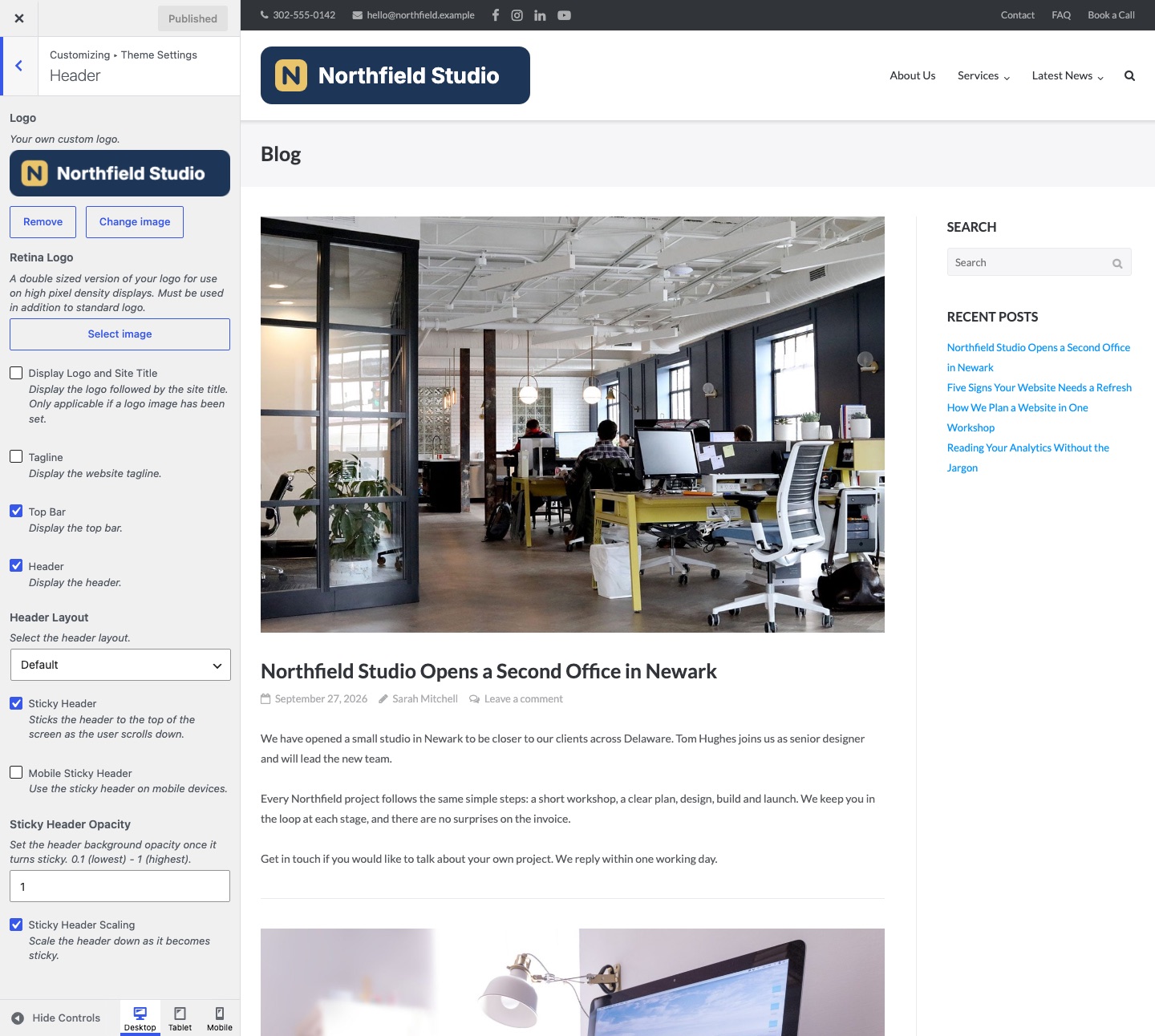
Ultra keeps the header in view as a visitor scrolls. The settings are at AppearanceCustomizeTheme SettingsHeader.
Update From Ultra 1.6.7
Ultra 1.6.7 has a script loading bug that stops the sticky header on some sites. Ultra 1.6.8 fixes it. Go to AppearanceThemes and read the version number under Ultra. If it is 1.6.7, update the theme.
Ultra Premium uses the 2.x numbers for the same releases, so its affected version is 2.6.7. Update it from DashboardUpdates. If no update shows, see Premium Theme Update Not Showing.
Turn On the Sticky Header on Phones and Tablets
Ultra checks the device type. It does not check the screen width. On a phone or tablet, the header sticks only when Mobile Sticky Header is on. A narrow desktop browser window still shows a sticky header.
- Go to AppearanceCustomizeTheme SettingsHeader.
- Turn on Mobile Sticky Header. The default is off.
- Click Publish.
To check the device, view the page source on the phone or tablet and search for ultra-mobile-device. Ultra adds that class to the body tag when WordPress detects a phone or tablet.
Check the Sticky Header Setting
In the same Customizer section, turn on Sticky Header. The default is on. When it is off, Ultra does not load the sticky header scripts. The Header setting must also be on, and the Header setting in the Page Settings box of the page must be on.
To confirm the setting reaches the page, view the page source and search for sticky-header. The header tag with the ID masthead has that class when the setting is on.
Find a Script That Fails
The sticky header runs from the files jquery.hc-sticky.min.js, hc-sticky.helpers.min.js and jquery.theme.min.js. A script error earlier on the page, or a plugin that changes how these files load, stops the header.
- Open the page in a private browser window and press F12 to open the developer tools.
- Reload the page and open the Console tab. A red error that names a plugin file points to that plugin.
- In your caching or optimization plugin, turn off minify, combine, defer and delay for JavaScript. Then clear its cache and test again.
- If the error stays, turn off all plugins and turn them on one at a time. See Resolving Plugin Conflicts.
Clear the Cache
Ultra writes the sticky settings into the page HTML as classes. A page cache keeps the old HTML after you change a setting, so clear the cache after every change.
Ultra also adds ultra-mobile-device for phones and tablets. A page cache that keeps one copy for all devices can show a phone copy to desktop visitors. The header then does not stick on desktop. Set your caching plugin to keep separate mobile copies, or clear its cache.
Fix a Header That Turns White or See-Through
The Header Becomes See-Through
Set Sticky Header Opacity to 1. It is in AppearanceCustomizeTheme SettingsHeader. The default is 1. Values from 0.1 to 1 set how solid the header is once it sticks. Lower values let the page show through.
The Header Turns White
The sticky header has a white background by default. In Ultra Premium, set Background Color at AppearanceCustomizeTheme DesignHeader. The sticky header then uses that color. In free Ultra, add this CSS at AppearanceCustomizeAdditional CSS.
.site-header.is-stuck {
	background: #222222;
}
What Does Not Stick
The sticky header holds the logo, the main menu and the search icon. The top bar does not stick. It scrolls away with the page.
The header gets smaller after the visitor scrolls 150px. That is Sticky Header Scaling. It is in the same Header section. Turn it off to keep the full height.